 [](https://github.com/dermotduffy/frigate-hass-card/releases)
[](https://github.com/dermotduffy/frigate-hass-card/actions/workflows/build.yaml)
[](LICENSE)
[](https://hacs.xyz)
[](https://github.com/dermotduffy/frigate-hass-card/releases)
[](https://github.com/dermotduffy/frigate-hass-card/actions/workflows/build.yaml)
[](LICENSE)
[](https://hacs.xyz)
 # Frigate Lovelace Card
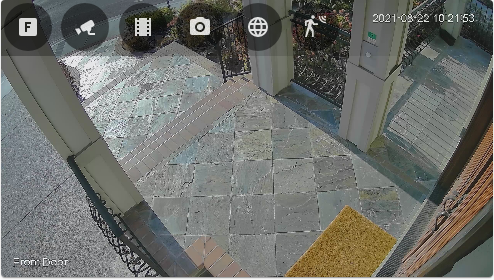
A full-featured Frigate Lovelace card:
* Live viewing.
* Clips and snapshot browsing via mini-gallery.
* Automatic updating to continually show latest clip / snapshot.
* Support for filtering events by zone and label.
* Motion sensor access.
* Full Lovelace editing support.
* Theme friendly.
* **Advanced**: Support for [WebRTC](https://github.com/AlexxIT/WebRTC) live viewing.
## Installation
* Use [HACS](https://hacs.xyz/) to install the card:
```
Home Assistant > HACS > Integrations > "Explore & Add Integrations" > Frigate Card
```
* Add the following to `configuration.yaml`:
```yaml
lovelace:
resources:
- url: /hacsfiles/frigate-hass-card/frigate-hass-card.js
type: module
```
* Restart Home Assistant.
* Add the new card to the Lovelace configuration!
## Options
### Required
| Option | Default | Description |
| ------------- | - | --------------------------------------------- |
| `camera_entity` | | The Frigate camera entity to use in the live camera view.|
| `frigate_url` | | The URL of the frigate server. Must be manually specified, as the URL from the underlying device is not available to Lovelace cards.|
### Optional
| Option | Default | Description |
| ------------- | --------------------------------------------- | - |
| `motion_entity` | | A binary sensor to show in the menu (e.g. a Frigate motion binary sensor) and to use to trigger card updates.|
| `frigate_camera_name` | The string after the "camera." in the `camera_entity` option (above). | This parameter allows the camera name heuristic to be overriden for cases where the entity name does not cleanly map to the Frigate camera name (e.g. when the Frigate camera name is capitalized, but the entity name is lower case). This camera name is used for communicating with the Frigate backend, e.g. for fetching events. |
| `view_default` | `live` | The view to show by default. See [views](#views) below.|
| `menu_mode` | `hidden` | The menu mode to show by default. See [menu modes](#menu-modes) below.|
| `view_timeout` | | A numbers of seconds of inactivity after which the card will reset to the default configured view. Inactivity is defined as lack of interaction with the Frigate menu.|
| `autoplay_clip` | `false` | Whether or not to autoplay clips in the 'clip' [view](#views). Clips manually chosen in the clips gallery will still autoplay.|
### Advanced
| Option | Default | Description |
| ------------- | - | --------------------------------------------- |
| `label` | | A label used to filter events (clips & snapshots), e.g. 'person'.|
| `zone` | | A zone used to filter events (clips & snapshots), e.g. 'front_door'.|
### WebRTC Options
WebRTC support blends the use of the ultra-realtime [WebRTC live
view](https://github.com/AlexxIT/WebRTC) with convenient access to Frigate
events/snapshots/UI. A perfect combination!
# Frigate Lovelace Card
A full-featured Frigate Lovelace card:
* Live viewing.
* Clips and snapshot browsing via mini-gallery.
* Automatic updating to continually show latest clip / snapshot.
* Support for filtering events by zone and label.
* Motion sensor access.
* Full Lovelace editing support.
* Theme friendly.
* **Advanced**: Support for [WebRTC](https://github.com/AlexxIT/WebRTC) live viewing.
## Installation
* Use [HACS](https://hacs.xyz/) to install the card:
```
Home Assistant > HACS > Integrations > "Explore & Add Integrations" > Frigate Card
```
* Add the following to `configuration.yaml`:
```yaml
lovelace:
resources:
- url: /hacsfiles/frigate-hass-card/frigate-hass-card.js
type: module
```
* Restart Home Assistant.
* Add the new card to the Lovelace configuration!
## Options
### Required
| Option | Default | Description |
| ------------- | - | --------------------------------------------- |
| `camera_entity` | | The Frigate camera entity to use in the live camera view.|
| `frigate_url` | | The URL of the frigate server. Must be manually specified, as the URL from the underlying device is not available to Lovelace cards.|
### Optional
| Option | Default | Description |
| ------------- | --------------------------------------------- | - |
| `motion_entity` | | A binary sensor to show in the menu (e.g. a Frigate motion binary sensor) and to use to trigger card updates.|
| `frigate_camera_name` | The string after the "camera." in the `camera_entity` option (above). | This parameter allows the camera name heuristic to be overriden for cases where the entity name does not cleanly map to the Frigate camera name (e.g. when the Frigate camera name is capitalized, but the entity name is lower case). This camera name is used for communicating with the Frigate backend, e.g. for fetching events. |
| `view_default` | `live` | The view to show by default. See [views](#views) below.|
| `menu_mode` | `hidden` | The menu mode to show by default. See [menu modes](#menu-modes) below.|
| `view_timeout` | | A numbers of seconds of inactivity after which the card will reset to the default configured view. Inactivity is defined as lack of interaction with the Frigate menu.|
| `autoplay_clip` | `false` | Whether or not to autoplay clips in the 'clip' [view](#views). Clips manually chosen in the clips gallery will still autoplay.|
### Advanced
| Option | Default | Description |
| ------------- | - | --------------------------------------------- |
| `label` | | A label used to filter events (clips & snapshots), e.g. 'person'.|
| `zone` | | A zone used to filter events (clips & snapshots), e.g. 'front_door'.|
### WebRTC Options
WebRTC support blends the use of the ultra-realtime [WebRTC live
view](https://github.com/AlexxIT/WebRTC) with convenient access to Frigate
events/snapshots/UI. A perfect combination!
 | Option | Default | Description |
| ------------- | - | -------------------------------------------- |
| `live_provider` | | Whether `frigate` or `webrtc` should provide the live camera view.|
| `webrtc.entity` | | The RTSP entity to use with WebRTC.|
| `webrtc.*`| | Any other options in a `webrtc:` YAML dictionary are silently passed through to WebRTC. See [WebRTC Configuration](https://github.com/AlexxIT/WebRTC#configuration) for full details this external card provides.|
**Note**: WebRTC must be installed and configured separately (see [details](https://github.com/AlexxIT/WebRTC)) before it can be used with this card.
#### Specifying the WebRTC Camera
There are two ways to specify the WebRTC source camera:
* Manual setup of separate RTSP camera entities in Home Assistant. These entities will then be available for selection in the GUI card editor for the Frigate card under the WebRTC options, or can be manually specified with a `webrtc.entity` option in YAML:
```yaml
[rest of Frigate card configuration]
webrtc:
entity: 'camera.front_door_rstp`
```
* OR manually configuring the `url` parameter as part of a manual Frigate card configuration, like the following example:
```yaml
[rest of Frigate card configuration]
webrtc:
url: 'rtsp://USERNAME:PASSWORD@CAMERA:554/RTSP_PATH'
```
See [WebRTC configuration](https://github.com/AlexxIT/WebRTC#configuration) for full configuration options.
## Views
This card supports several different views.
| Key | Description |
| ------------- | --------------------------------------------- |
|`live` (default)| Shows the live camera view, either the name Frigate view or [WebRTC](#webrtc) if configured.|
|`snapshots`|Shows the snapshot gallery for this camera/zone/label.|
|`snapshot`|Shows the most recent snapshot for this camera/zone/label.|
|`clips`|Shows the clip gallery for this camera/zone/label.|
|`clip`|Shows the most recent clip for this camera/zone/label.|
### Automatic updates in the `clip` or `snapshot` view
Updates will occur whenever the state of the `camera_entity` or `motion_entity`
changes. In particular, if the desire is to have a live view of the most recent
event, the user should configure `motion_entity` to a Frigate binary sensor
associated with that camera in order to trigger updates more regularly (the
underlying camera entity state does not change often, the motion binary sensors
do).
### Getting from a snapshot to a clip
Clicking on a snapshot will take the user to the clip associated with the
snapshot (if any).
### Getting event details
More details about an event can be found by clicking the 'globe' icon in the
menu, which takes the user to the Frigate page for that event.
## Menu Modes
This card supports several menu configurations.
| Key | Description | Screenshot |
| ------------- | --------------------------------------------- | - |
|`hidden` (default)| Hide the menu by default, expandable upon clicking the 'F' button. |
| Option | Default | Description |
| ------------- | - | -------------------------------------------- |
| `live_provider` | | Whether `frigate` or `webrtc` should provide the live camera view.|
| `webrtc.entity` | | The RTSP entity to use with WebRTC.|
| `webrtc.*`| | Any other options in a `webrtc:` YAML dictionary are silently passed through to WebRTC. See [WebRTC Configuration](https://github.com/AlexxIT/WebRTC#configuration) for full details this external card provides.|
**Note**: WebRTC must be installed and configured separately (see [details](https://github.com/AlexxIT/WebRTC)) before it can be used with this card.
#### Specifying the WebRTC Camera
There are two ways to specify the WebRTC source camera:
* Manual setup of separate RTSP camera entities in Home Assistant. These entities will then be available for selection in the GUI card editor for the Frigate card under the WebRTC options, or can be manually specified with a `webrtc.entity` option in YAML:
```yaml
[rest of Frigate card configuration]
webrtc:
entity: 'camera.front_door_rstp`
```
* OR manually configuring the `url` parameter as part of a manual Frigate card configuration, like the following example:
```yaml
[rest of Frigate card configuration]
webrtc:
url: 'rtsp://USERNAME:PASSWORD@CAMERA:554/RTSP_PATH'
```
See [WebRTC configuration](https://github.com/AlexxIT/WebRTC#configuration) for full configuration options.
## Views
This card supports several different views.
| Key | Description |
| ------------- | --------------------------------------------- |
|`live` (default)| Shows the live camera view, either the name Frigate view or [WebRTC](#webrtc) if configured.|
|`snapshots`|Shows the snapshot gallery for this camera/zone/label.|
|`snapshot`|Shows the most recent snapshot for this camera/zone/label.|
|`clips`|Shows the clip gallery for this camera/zone/label.|
|`clip`|Shows the most recent clip for this camera/zone/label.|
### Automatic updates in the `clip` or `snapshot` view
Updates will occur whenever the state of the `camera_entity` or `motion_entity`
changes. In particular, if the desire is to have a live view of the most recent
event, the user should configure `motion_entity` to a Frigate binary sensor
associated with that camera in order to trigger updates more regularly (the
underlying camera entity state does not change often, the motion binary sensors
do).
### Getting from a snapshot to a clip
Clicking on a snapshot will take the user to the clip associated with the
snapshot (if any).
### Getting event details
More details about an event can be found by clicking the 'globe' icon in the
menu, which takes the user to the Frigate page for that event.
## Menu Modes
This card supports several menu configurations.
| Key | Description | Screenshot |
| ------------- | --------------------------------------------- | - |
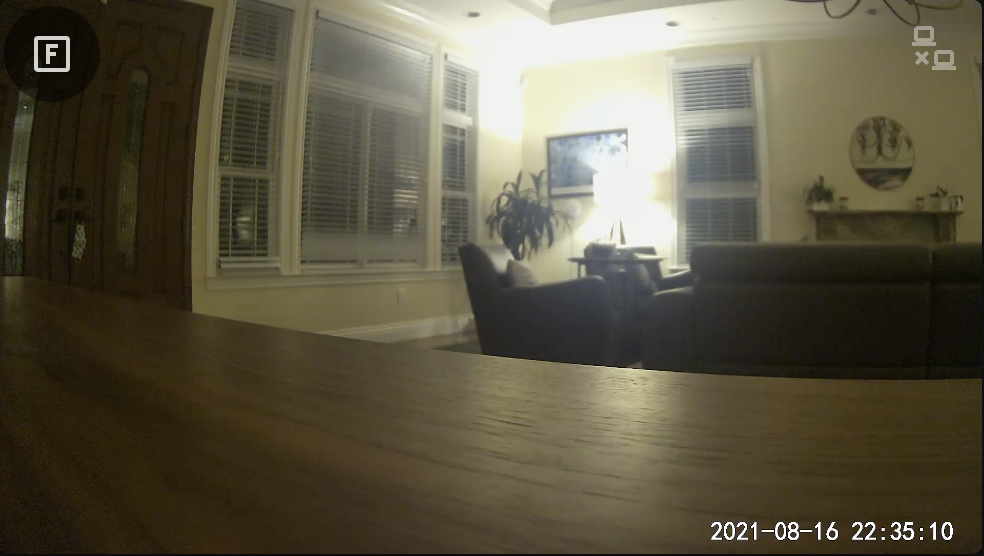
|`hidden` (default)| Hide the menu by default, expandable upon clicking the 'F' button. | 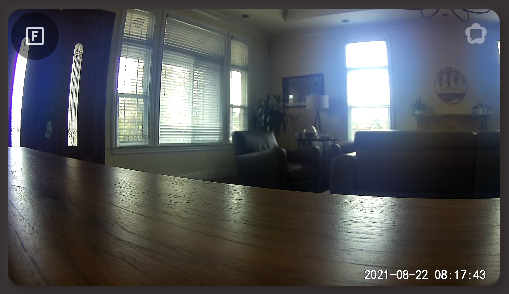 |
|`overlay`| Overlay the menu on top of the card contents. The 'F' button shows the default view. |
|
|`overlay`| Overlay the menu on top of the card contents. The 'F' button shows the default view. | 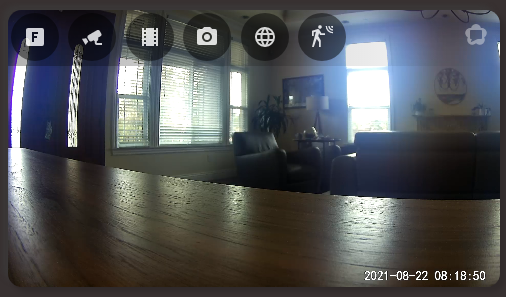 |
|`above`| Render the menu above the card. The 'F' button shows the default view. |
|
|`above`| Render the menu above the card. The 'F' button shows the default view. | 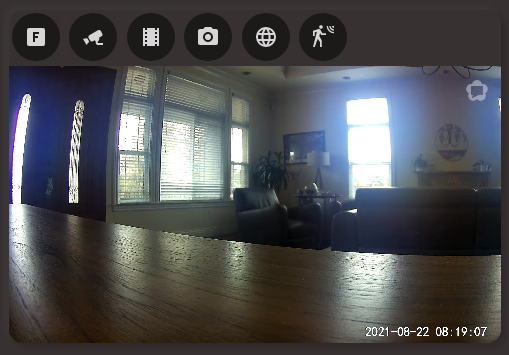 |
|`below`| Render the menu below the card. The 'F' button shows the default view. |
|
|`below`| Render the menu below the card. The 'F' button shows the default view. | 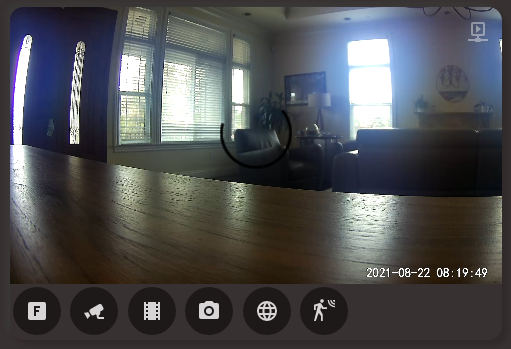 |
### Example YAML Configuration
A configuration that uses WebRTC for live:
```yaml
- type: 'custom:frigate-card'
camera_entity: camera.front_door
frigate_url: http://frigate
motion_entity: binary_sensor.front_door_person_motion
live_provider: webrtc
webrtc:
entity: camera.front_door_rtsp
```
A configuration that shows the latest clip on load, but does not automatically play it:
```yaml
- type: 'custom:frigate-card'
camera_entity: camera.front_door
frigate_url: http://frigate
motion_entity: binary_sensor.front_door_person_motion
view_default: clip
```
### Screenshot: Snapshot / Clip Gallery
Full viewing of clips:
|
### Example YAML Configuration
A configuration that uses WebRTC for live:
```yaml
- type: 'custom:frigate-card'
camera_entity: camera.front_door
frigate_url: http://frigate
motion_entity: binary_sensor.front_door_person_motion
live_provider: webrtc
webrtc:
entity: camera.front_door_rtsp
```
A configuration that shows the latest clip on load, but does not automatically play it:
```yaml
- type: 'custom:frigate-card'
camera_entity: camera.front_door
frigate_url: http://frigate
motion_entity: binary_sensor.front_door_person_motion
view_default: clip
```
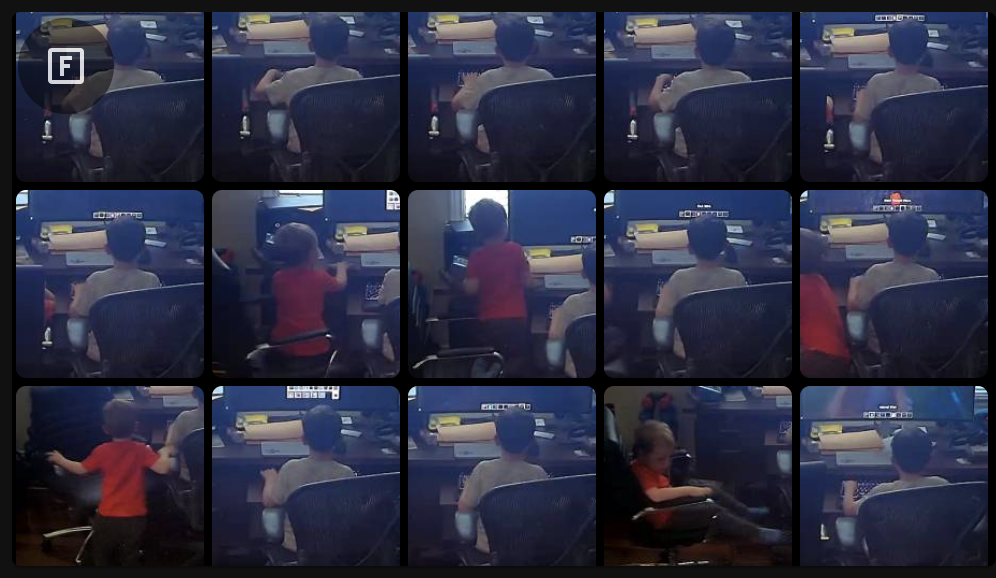
### Screenshot: Snapshot / Clip Gallery
Full viewing of clips:
 ## Card Editing
This card supports full editing via the Lovelace card editor. Additional arbitrary configuration for WebRTC may be specified in YAML mode.
## Card Editing
This card supports full editing via the Lovelace card editor. Additional arbitrary configuration for WebRTC may be specified in YAML mode.
 ## Troubleshooting
### Failed to fetch / Cannot load clips or snapshots
`Failed to fetch` is a generic error indicating your browser (and this card)
could not communicate with the Frigate server specified in the card
configuration. This could be for any number of reasons (e.g. incorrect URL,
incorrect port, broken DNS, etc).
If the 'globe' icon in the menu bar of the card also doesn't open the Frigate
UI, the address entered is probably incorrect/inaccessible.
#### Mixed content
If you are accessing your Home Assistant instance over `https`, you will likely
receive this error unless you have configured the card to also communicate with
Frigate via `https` (e.g. via a reverse proxy). This is because the browser is
blocking the attempt to mix access to both `https` and `http` resources.
The javascript console ([how to access](https://javascript.info/devtools)) will
show an error such as:
```
Mixed Content: The page at '' was loaded over HTTPS, but requested an
insecure resource ''. This request has been blocked; the content must be
served over HTTPS.
```
Accessing both Home Assistant and Frigate over `https` will likely resolve this
issue (e.g. through the use of a reverse proxy in front of Frigate).
## Troubleshooting
### Failed to fetch / Cannot load clips or snapshots
`Failed to fetch` is a generic error indicating your browser (and this card)
could not communicate with the Frigate server specified in the card
configuration. This could be for any number of reasons (e.g. incorrect URL,
incorrect port, broken DNS, etc).
If the 'globe' icon in the menu bar of the card also doesn't open the Frigate
UI, the address entered is probably incorrect/inaccessible.
#### Mixed content
If you are accessing your Home Assistant instance over `https`, you will likely
receive this error unless you have configured the card to also communicate with
Frigate via `https` (e.g. via a reverse proxy). This is because the browser is
blocking the attempt to mix access to both `https` and `http` resources.
The javascript console ([how to access](https://javascript.info/devtools)) will
show an error such as:
```
Mixed Content: The page at '' was loaded over HTTPS, but requested an
insecure resource ''. This request has been blocked; the content must be
served over HTTPS.
```
Accessing both Home Assistant and Frigate over `https` will likely resolve this
issue (e.g. through the use of a reverse proxy in front of Frigate).