 [](https://github.com/dermotduffy/frigate-hass-card/releases)
[](https://github.com/dermotduffy/frigate-hass-card/actions/workflows/build.yaml)
[](LICENSE)
[](https://hacs.xyz)
[](https://www.buymeacoffee.com/dermotdu)
[](https://github.com/dermotduffy/frigate-hass-card/releases)
[](https://github.com/dermotduffy/frigate-hass-card/actions/workflows/build.yaml)
[](LICENSE)
[](https://hacs.xyz)
[](https://www.buymeacoffee.com/dermotdu)
 | ♥️ This card is under active development. Be sure to consult the documentation that matches the release of the card you're using, rather than the documentation at head. README for latest stable release: [v3.0](https://github.com/dermotduffy/frigate-hass-card/blob/v3.0.0/README.md) |
| - |
# Frigate Lovelace Card
A full-featured Frigate Lovelace card:
* Live viewing of multiple cameras.
* Clips and snapshot browsing via mini-gallery.
* Automatic updating to continually show latest clip / snapshot.
* Support for filtering events by zone and label.
* Arbitrary entity access via menu (e.g. motion sensor access).
* Fullscreen mode.
* Carousel/Swipeable media, thumbnails and cameras.
* Direct media downloads.
* Lovelace visual editing support.
* Full [Picture Elements](https://www.home-assistant.io/lovelace/picture-elements/) support.
* Theme friendly.
## Screenshots Below!
See more [screenshots](#screenshots) below.
## Installation
* [HACS](https://hacs.xyz/) is **highly** recommended to install the card -- it works for all Home Assistant variants. If you don't have [HACS](https://hacs.xyz/) installed, start there -- then come back to these instructions.
* Find the card in HACS:
```
Home Assistant > HACS > Frontend > "Explore & Add Integrations" > Frigate Card
```
* Click `Download this repository with HACS`.
#### Lovelace YAML users
If Lovelace is in YAML mode then there's an additional step required to load the resource into your browser. (This mode is not the default -- you would see`mode: yaml` under `lovelace:` in your `configuration.yaml` if this applies to you),
* Add the following to `configuration.yaml` (note that `/hacsfiles/` is just an [optimized equivalent](https://hacs.xyz/docs/categories/plugins#custom-view-hacsfiles) of `/local/community/` that HACS natively supports):
```yaml
lovelace:
resources:
- url: /hacsfiles/frigate-hass-card/frigate-hass-card.js
type: module
```
* Restart Home Assistant.
* Add the new card to the Lovelace configuration!
### Advanced Users: Manual Installation
**Note:** This is very rarely needed unless you are developing the card. Please consider HACS (above)!
* Download the `frigate-hass-card.js` attachment of the desired [release](https://github.com/dermotduffy/frigate-hass-card/releases) to a location accessible by Home Assistant.
* Add the location as a Lovelace resource via the UI, or via [YAML configuration](https://www.home-assistant.io/lovelace/dashboards/#resources)) such as:
```yaml
lovelace:
mode: yaml
resources:
- url: /local/frigate-hass-card.js
type: module
```
## Configuration
At least 1 camera must be configured in the `cameras` section, but otherwise all configuration parameters are optional.
### Camera Options
The `cameras` block configures a list of cameras the card should support. The first listed camera is the default. Camera configuration is under:
```yaml
cameras:
- [...camera 0 (default camera)...]
- [...camera 1...]
- [...camera 2...]
```
See the [fully expanded cameras configuration example](#config-expanded-cameras) for how these parameters are structured.
| Option | Default | Overridable | Description |
| - | - | - | - |
| `camera_entity` | | :heavy_multiplication_x: | The Home Assistant camera entity to use with the `frigate` live provider view. Also used to automatically detect the name of the underlying Frigate camera, and the title/icon of the camera. |
| `live_provider` | `auto` | :heavy_multiplication_x: | The choice of live stream provider. See [Live Providers](#live-providers) below.|
| `title` | Autodetected from `camera_entity` if that is specified. | :heavy_multiplication_x: | A friendly name for this camera to use in the card. |
| `icon` | Autodetected from `camera_entity` if that is specified. | :heavy_multiplication_x: | The icon to use for this camera in the camera menu and in the next & previous controls when using the `icon` style. |
| `id` | `camera_entity`, `webrtc_card.entity` or `frigate.camera_name` if set (in that preference order). | :heavy_multiplication_x: | An optional identifier to use throughout the card configuration to refer unambiguously to this camera. See [camera IDs](#camera-ids). |
| `frigate` | | :heavy_multiplication_x: | Options for a Frigate camera. See [Frigate configuration](#camera-frigate-configuration) below. |
| `dependencies` | | :heavy_multiplication_x: | Other cameras that this camera should depend upon. See [camera dependencies](#camera-dependencies-configuration) below. |
| `triggers` | | :heavy_multiplication_x: | Define what should cause this camera to update/trigger. See [camera triggers](#camera-trigger-configuration) below. |
| `webrtc_card` | | :heavy_multiplication_x: | The WebRTC entity/URL to use for this camera with the `webrtc-card` live provider. See below. |
#### Available Live Providers
|Live Provider|Latency|Frame Rate|Installation|Description|
| -- | -- | -- | -- | -- |
|`ha` (default HA configuration)|Poor|High|Builtin|Use the built-in Home Assistant camera stream. The camera doesn't even need to be a Frigate camera! |
|`ha` (when configured with LL-HLS)|Better|High|Builtin|Use the built-in Home Assistant camera streams -- can be configured to use an [LL-HLS](https://www.home-assistant.io/integrations/stream/#ll-hls) feed for lower latency.|
|`ha` (Native WebRTC)|Best|High|Builtin|Use the built-in Home Assistant camera streams -- can be configured to use [native WebRTC](https://www.home-assistant.io/integrations/rtsp_to_webrtc/) offering a very low-latency feed direct to your browser.|
|`frigate-jsmpeg`|Better|Low|Builtin|Stream the JSMPEG stream from Frigate (proxied via the Frigate integration). See [note below on the required integration version](#jsmpeg-troubleshooting) for this live provider to function. This is the only live provider that can view the Frigate `birdseye` view.|
|`webrtc-card`|Best|High|Separate installation required|Embed's [AlexxIT's WebRTC Card](https://github.com/AlexxIT/WebRTC) to stream live feed, requires manual extra setup, see [below](#webrtc). Not to be confused with native Home Assistant WebRTC (use `ha` provider above).|
#### Camera Frigate configuration
The `frigate` block configures options for a Frigate camera. This configuration is included as part of a camera entry in the `cameras` array.
```yaml
cameras:
- frigate:
```
| Option | Default | Overridable | Description |
| - | - | - | - |
| `camera_name` | Autodetected from `camera_entity` if that is specified. | :heavy_multiplication_x: | The Frigate camera name to use when communicating with the Frigate server, e.g. for viewing clips/snapshots or the JSMPEG live view. To view the birdseye view set this to `birdseye` and use the `frigate-jsmpeg` live provider.|
| `url` | | :heavy_multiplication_x: | The URL of the frigate server. If set, this value will be (exclusively) used for a `Frigate UI` menu button. All other communication with Frigate goes via Home Assistant. |
| `label` | | :heavy_multiplication_x: | A Frigate label / object filter used to filter events (clips & snapshots), e.g. `person`.|
| `zone` | | :heavy_multiplication_x: | A Frigate zone used to filter events (clips & snapshots), e.g. `front_door`.|
| `client_id` | `frigate` | :heavy_multiplication_x: | The Frigate client id to use. If this Home Assistant server has multiple Frigate server backends configured, this selects which server should be used. It should be set to the MQTT client id configured for this server, see [Frigate Integration Multiple Instance Support](https://docs.frigate.video/integrations/home-assistant/#multiple-instance-support).|
#### Camera WebRTC Card configuration
The `webrtc_card` block configures only the entity/URL for this camera to be used with the WebRTC Card live provider. This configuration is included as part of a camera entry in the `cameras` array.
```yaml
cameras:
- webrtc_card:
```
| Option | Default | Overridable | Description |
| - | - | - | - |
| `entity` | | :heavy_multiplication_x: | The RTSP entity to pass to the WebRTC Card for this camera. Specify this OR `url` (below). |
| `url` | | :heavy_multiplication_x: | The RTSP url to pass to the WebRTC Card. Specify this OR `entity` (above). |
See [Using the WebRTC Card](#webrtc) below for more details on how to use the WebRTC Card live provider.
#### Camera Dependency Configuration
The `dependencies` block configures other cameras as dependents of this camera. Dependent cameras have their events fetched and merged with this camera. Configuration is under:
```yaml
cameras:
- dependencies:
```
| Option | Default | Overridable | Description |
| - | - | - | - |
| `cameras` | | :heavy_multiplication_x: | An optional array of other camera identifiers (see [camera IDs](#camera-ids)). If specified the card will fetch events for this camera and *also* recursively events for the named cameras. All dependent cameras must themselves be a configured camera in the card. This can be useful to group events for cameras that are close together, to always have clips/snapshots show fully merged events across all cameras or to show events for the `birdseye` camera that otherwise would not have events itself.|
| `all_cameras` | `false` | :heavy_multiplication_x: | Shortcut to specify all other cameras as dependent cameras.|
#### Camera Trigger Configuration
The `triggers` block configures what triggers a camera. Triggering can be used to either reset to the default view / update the card, or active the camera in [scan mode](#scan-mode).
```yaml
cameras:
- triggers:
```
| Option | Default | Overridable | Description |
| - | - | - | - |
| `motion` | `false` | :heavy_multiplication_x: | Whether to not to trigger the camera by automatically detecting and using the motion `binary_sensor` for this camera. This autodetection only works for Frigate cameras, and only when the motion `binary_sensor` entity has been enabled in Home Assistant.|
| `occupancy` | `true` | :heavy_multiplication_x: | Whether to not to trigger the camera by automatically detecting and using the occupancy `binary_sensor` for this camera. This autodetection only works for Frigate cameras, and only when the occupancy `binary_sensor` entity has been enabled in Home Assistant.|
| `entities` | | :heavy_multiplication_x: | Whether to not to trigger the camera when the state of any Home Assistant entity becomes active (i.e. state becomes `on` or `open`). This works for Frigate or non-Frigate cameras.|
#### Camera IDs: Refering to cameras in card configuration
Each camera configured in the card has a single identifier (`id`). For a given camera, this will be one of the camera {`id`, `camera_entity`, `webrtc_card.entity` or `frigate.camera_name`} parameters for that camera -- in that order of precedence. These ids may be used in conditions, dependencies or custom actions to refer to a given camera unambiguously. |
#### Example
See [the basic cameras configuration example](#basic-cameras-configuration) below.
### View Options
All configuration is under:
```yaml
view:
```
See the [fully expanded view configuration example](#config-expanded-view) for how these parameters are structured.
| Option | Default | Overridable | Description |
| - | - | - | - |
| `default` | `live` | :white_check_mark: | The view to show in the card by default. The default camera is the first one listed. See [views](#views) below.|
| `camera_select` | `current` | :white_check_mark: | The view to show when a new camera is selected (e.g. in the camera menu). If `current` the view is unchanged when a new camera is selected. Other acceptable values may be seen at [views](#views) below.|
| `dark_mode` | `off` | :white_check_mark: | Whether or not to turn dark mode `on`, `off` or `auto` to automatically turn on if the card `timeout_seconds` has expired (i.e. card has been left unattended for that period of time) or if dark mode is enabled in the HA profile theme setting. Dark mode dims the brightness by `25%`.|
| `timeout_seconds` | `300` | :white_check_mark: | A numbers of seconds of inactivity after user interaction, after which the card will reset to the default configured view (i.e. 'screensaver' functionality). Inactivity is defined as lack of mouse/touch interaction with the Frigate card. If the default view occurs sooner (e.g. via `update_seconds` or manually) the timer will be stopped. `0` means disable this functionality. |
| `update_seconds` | `0` | :white_check_mark: | A number of seconds after which to automatically update/refresh the default view. See [card updates](#card-updates) below for behavior and usecases. If the default view occurs sooner (e.g. manually) the timer will start over. `0` disables this functionality.|
| `update_force` | `false` | :white_check_mark: | Whether automated card updates/refreshes should ignore user interaction. See [card updates](#card-updates) below for behavior and usecases.|
| `update_entities` | | :white_check_mark: | **YAML only**: A card-wide list of entities that should cause the view to reset to the default (if the entity only pertains to a particular camera use `triggers` for the selected camera instead, see [Trigger Configuration](#camera-triggers-configuration)). See [card updates](#card-updates) below for behavior and usecases.|
| `update_cycle_camera` | `false` | :white_check_mark: | When set to `true` the selected camera is cycled on each default view change. |
| `render_entities` | | :white_check_mark: | **YAML only**: A list of entity ids that should cause the card to re-render 'in-place'. The view/camera is not changed. `update_*` flags do not pertain/relate to the behavior of this flag. This should **very** rarely be needed, but could be useful if the card is both setting and changing HA state of the same object as could be the case for some complex `card_mod` scenarios ([example](https://github.com/dermotduffy/frigate-hass-card/issues/343)). |
| `scan` | | :white_check_mark: | Configuration for [scan mode](#scan-mode). |
| `actions` | | :white_check_mark: | Actions to use for all views, individual actions may be overriden by view-specific actions. See [actions](#actions) below.|
#### View: Scan Mode configuration
All configuration is under:
```yaml
view:
scan:
```
Scan mode allows the card to automatically "follow the action". In this mode the card will automatically select a camera in the `live` view when an entity changes to an active state (specifically `on` or `open`). The entities considered are defined by your camera configuration (see `triggers` parameters). An untrigger is defined as the state for all the configured entities returning to inactive (i.e. not `on` or `open`), with an optional number of seconds to wait prior to the untriggering (see `untrigger_seconds`).
When the camera untriggers, the view will either remain as-is (if `untrigger_reset` is `false`) and the card return to normal operation, or reset to the default view (if `untrigger_reset` is `true` -- the default).
Triggering is only allowed when there is no ongoing human interaction with the card -- interaction will automatically untrigger and further triggering will not occur until after the card has been unattended for `view.timeout_seconds`.
Scan mode tracks Home Assistant state *changes* -- when the card is first started, it takes an active change in state to trigger (i.e. an already occupied room will not trigger it, but a newly occupied room will).
| Option | Default | Overridable | Description |
| - | - | - | - |
| `enabled` | `false` | :white_check_mark: | Whether to enable scan mode. |
| `show_trigger_status` | `true` | :white_check_mark: | Whether or not the card should show a visual indication that it is triggered (a pulsing border around the card edge). |
| `untrigger_reset` | `true` | :white_check_mark: | Whether or not to reset the view to the default after untriggering. |
| `untrigger_seconds` | `0` | :white_check_mark: | The number of seconds to wait after all entities are inactive before untriggering. |
### Menu Options
All configuration is under:
```yaml
menu:
```
See the [fully expanded menu configuration example](#config-expanded-menu) for how these parameters are structured.
| Option | Default | Overridable | Description |
| - | - | - | - |
| `style` | `hidden` | :white_check_mark: | The menu style to show by default, one of `none`, `hidden`, `hover`, `overlay`, or `outside`. See [menu styles](#menu-styles) below.|
| `position` | `top` | :white_check_mark: | Whether to show the menu on the `left`, `right`, `top` or `bottom` side of the card. Note that for the `outside` style only the `top` and `bottom` positions have an effect.|
| `alignment` | `left` | :white_check_mark: | Whether to align the menu buttons to the `left`, `right`, `top` or `bottom` of the menu. Some selections may have no effect depending on the value of `position` (e.g. it doesn't make sense to `left` align icons on a menu with `position` to the `left`).|
| `button_size` | 40 | :white_check_mark: | The size of the menu buttons in pixels. Must be >= `20`.|
| `buttons` | | :white_check_mark: | Whether to show or hide built-in buttons. See below. |
#### Menu Options: Buttons
All configuration is under:
```yaml
menu:
buttons:
[button]:
```
##### Buttons
| Option | Overridable | Description |
| - | - | - |
| `frigate` | :white_check_mark: | The `Frigate` menu button: brings the user to the default configured view (`view.default`), or collapses/expands the menu if the `menu.style` is `hidden` . |
| `cameras` | :white_check_mark: | The camera selection submenu. Will only appear if multiple cameras are configured. |
| `live` | :white_check_mark: | The `live` view menu button: brings the user to the `live` view. See [views](#views) below.|
| `clips` | :white_check_mark: | The `clips` view menu button: brings the user to the `clips` view on tap and the most-recent `clip` view on hold. See [views](#views) below. This button will never be shown if the `frigate.camera_name` for the selected camera is not auto-detected/specified (e.g. non-Frigate cameras), or if the `frigate.camera_name` is `birdseye`.|
| `snapshots` | :white_check_mark: | The `snapshots` view menu button: brings the user to the `clips` view on tap and the most-recent `snapshot` view on hold. See [views](#views) below. This button will never be shown if the `frigate.camera_name` for the selected camera is not auto-detected/specified (e.g. non-Frigate cameras), or if the `frigate.camera_name` is `birdseye`.|
| `image` | :white_check_mark: | The `image` view menu button: brings the user to the static `image` view. See [views](#views) below.|
| `download` | :white_check_mark: | The `download` menu button: allow direct download of the media being displayed.|
| `frigate_ui` | :white_check_mark: | The `frigate_ui` menu button: brings the user to a context-appropriate page on the Frigate UI (e.g. the camera homepage). Will only appear if the `frigate.url` option is set.|
| `fullscreen` | :white_check_mark: | The `fullscreen` menu button: expand the card to consume the fullscreen. |
| `timeline` | :white_check_mark: | The `timeline` menu button: show the event timeline. |
| `media_player` | :white_check_mark: | The `media_player` menu button: sends the visible media to a remote media player. Supports Frigate clips, snapshots and live camera (only for cameras that specify a `camera_entity` and only using the default HA stream (equivalent to the `ha` live provider). `jsmpeg` or `webrtc-card` are not supported, although live can still be played as long as `camera_entity` is specified. In the player list, a `tap` will send the media to the player, a `hold` will stop the media on the player. |
##### Configuration on each button
| Option | Default | Overridable | Description |
| - | - | - | - |
| `enabled` | `true` for all buttons except `image` | :white_check_mark: | Whether or not to show the button. |
| `priority` | `50` | :white_check_mark: | The button priority. Higher priority buttons are ordered closer to the start of the menu alignment (i.e. a button with priority `70` will order further to the left than a button with priority `60`, when the menu alignment is `left`). Minimum `0`, maximum `100`.|
| `icon` | | :white_check_mark: | An icon to overriding the default for that button, e.g. `mdi:camera-front`. |
| `alignment` | `matching` | :white_check_mark: | Whether this button should have an alignment that is `matching` the menu alignment or `opposing` the menu. Can be used to create two separate groups of buttons on the menu. `priority` orders buttons within a given `alignment`. |
### Live Options
All configuration is under:
```yaml
live:
```
See the [fully expanded live configuration example](#config-expanded-live) for how these parameters are structured.
| Option | Default | Overridable | Description |
| - | - | - | - |
| `preload` | `false` | :heavy_multiplication_x: | Whether or not to preload the live view. Preloading causes the live view to render in the background regardless of what view is actually shown, so it's instantly available when requested. This consumes additional network/CPU resources continually. |
| `auto_play` | `all` | :heavy_multiplication_x: | Whether to automatically play live camera feeds. `never` will never automatically play, `selected` will automatically play when a camera is selected in the carousel, `visible` will automatically play when the browser/tab becomes visible or `all` on any opportunity to automatically play (i.e. either case). Some live providers (e.g. `webrtc-card`, `jsmpeg`) do not support the prevention of automatic play on initial load, but should still respect the value of this flag on play-after-pause.|
| `auto_pause` | `never` | :heavy_multiplication_x: | Whether to automatically pause live camera feeds. `never` will never automatically pause, `unselected` will automatically pause when a camera is unselected in the carousel, `hidden` will automatically pause when the browser/tab becomes hidden or `all` on any opportunity to automatically pause (i.e. either case). **Caution**: Some live providers (e.g. `jsmpeg`) may not offer human-accessible means to resume play if it is paused, unless the `auto_play` option (above) is used.|
| `auto_mute` | `all` | :heavy_multiplication_x: | Whether to automatically mute live camera feeds. `never` will never automatically mute, `unselected` will automatically mute when a camera is unselected in the carousel, `hidden` will automatically mute when the browser/tab becomes hidden or `all` on any opportunity to automatically mute (i.e. either case).|
| `auto_unmute` | `never` | :heavy_multiplication_x: | Whether to automatically unmute live camera feeds. `never` will never automatically unmute, `selected` will automatically unmute when a camera is unselected in the carousel, `visible` will automatically unmute when the browser/tab becomes visible or `all` on any opportunity to automatically unmute (i.e. either case).|
| `lazy_load` | `true` | :heavy_multiplication_x: | Whether or not to lazily load cameras in the camera carousel. Setting this will `false` will cause all cameras to load simultaneously when the `live` carousel is opened (or cause all cameras to load continually if both `lazy_load` and `preload` are `true`). This will result in a smoother carousel experience at a cost of (potentially) a substantial amount of continually streamed data. |
| `lazy_unload` | `never` | :heavy_multiplication_x: | When to lazily **un**load lazyily-loaded cameras. `never` will never lazily-unload, `unselected` will lazy-unload a camera when it is unselected in the carousel, `hidden` will lazy-unload all cameras when the browser/tab becomes hidden or `all` on any opportunity to lazily unload (i.e. either case). This will cause a reloading delay on revisiting that camera in the carousel but will save the streaming network resources that are otherwise consumed. This option has no effect if `lazy_load` is false. Some live providers (e.g. `webrtc-card`) implement their own lazy unloading independently which may occur regardless of the value of this setting.|
| `draggable` | `true` | :heavy_multiplication_x: | Whether or not the live carousel can be dragged left or right, via touch/swipe and mouse dragging. |
| `transition_effect` | `slide` | :heavy_multiplication_x: | Effect to apply as a transition between live cameras. Accepted values: `slide` or `none`. |
| `actions` | | :white_check_mark: | Actions to use for the `live` view. See [actions](#actions) below.|
| `controls` | | :white_check_mark: | Configuration for the `live` view controls. See below. |
| `jsmpeg` | | :white_check_mark: | Configuration for the `frigate-jsmpeg` live provider. See below.|
| `webrtc_card` | | :white_check_mark: | Configuration for the `webrtc-card` live provider. See below.|
#### Live Provider: JSMPEG Configuration
All configuration is under:
```yaml
live:
jsmpeg:
```
| Option | Default | Overridable | Description |
| - | - | - | - |
| `options` | | :white_check_mark: | **Advanced users only**: Control the underlying [JSMPEG library options](https://github.com/phoboslab/jsmpeg#usage). Supports setting these JSMPEG options `{audio, video, pauseWhenHidden, disableGl, disableWebAssembly, preserveDrawingBuffer, progressive, throttled, chunkSize, maxAudioLag, videoBufferSize, audioBufferSize}`. This is not necessary for the vast majority of users: only set these flags if you know what you're doing, as you may entirely break video rendering in the card.|
#### Live Provider: WebRTC Card Configuration
All configuration is under:
```yaml
live:
webrtc_card:
```
| Option | Default | Overridable | Description |
| - | - | - | - |
| `*`| | :white_check_mark: | Any options specified in the `webrtc_card:` YAML dictionary are silently passed through to the AlexxIT's WebRTC Card. See [WebRTC Configuration](https://github.com/AlexxIT/WebRTC#configuration) for full details this external card provides. This implies that if `entity` or `url` are specified here they will override the matching named parameters under the per camera configuration. |
See [Using WebRTC Card](#webrtc) below for more details on how to embed AlexxIT's WebRTC Card with the Frigate Card.
#### Live Controls: Thumbnails
All configuration is under:
```yaml
live:
controls:
thumbnails:
```
| Option | Default | Overridable | Description |
| - | - | - | - |
| `mode` | `none` | :white_check_mark: | Whether to show the thumbnail carousel `below` the media, `above` the media, in a drawer to the `left` or `right` of the media or to hide it entirely (`none`).|
| `size` | 100 | :white_check_mark: | The size of the thumbnails in the thumbnail carousel in pixels. Must be >= `75` and <= `175`. |
| `show_details` | `false` | :white_check_mark: | Whether to show event details (e.g. duration, start time, object detected, etc) alongside the thumbnail.|
| `show_controls` | `true` | :white_check_mark: | Whether to show event controls (e.g. timeline icon, favorite icon) alongside the thumbnail.|
| `media` | `clips` | :white_check_mark: | Whether to show `clips` or `snapshots` in the thumbnail carousel in the `live` view.|
#### Live Controls: Next / Previous
All configuration is under:
```yaml
live:
controls:
next_previous:
```
| Option | Default | Overridable | Description |
| - | - | - | - |
| `style` | `chevrons` | :white_check_mark: | When viewing live cameras, what kind of controls to show to move to the previous/next camera. Acceptable values: `chevrons`, `icons`, `none` . |
| `size` | 48 | :white_check_mark: | The size of the next/previous controls in pixels. Must be >= `20`. |
#### Live Controls: Title
All configuration is under:
```yaml
live:
controls:
title:
```
| Option | Default | Overridable | Description |
| - | - | - | - |
| `mode` | `popup-bottom-right` | :white_check_mark: | How to display the live camera title. Acceptable values: `none`, `popup-top-left`, `popup-top-right`, `popup-bottom-left`, `popup-bottom-right` . |
| `duration_seconds` | `2` | :white_check_mark: | The number of seconds to display the title popup. `0` implies forever.|
### Media Viewer Options
The `media_viewer` is used for viewing all `clip`, `snapshot` or recording media, in a media carousel.
All configuration is under:
```yaml
media_viewer:
```
See the [fully expanded Media viewer configuration example](#config-expanded-media-viewer) for how these parameters are structured.
| Option | Default | Overridable | Description |
| - | - | - | - |
| `auto_play` | `all` | :heavy_multiplication_x: | Whether to automatically play events. `never` will never automatically play, `selected` will automatically play when an event is selected in the carousel, `visible` will automatically play when the browser/tab becomes visible or `all` on any opportunity to automatically play (i.e. either case).|
| `auto_pause` | `all` | :heavy_multiplication_x: | Whether to automatically pause events. `never` will never automatically pause, `unselected` will automatically pause when an event is unselected in the carousel, `hidden` will automatically pause when the browser/tab becomes hidden or `all` on any opportunity to automatically pause (i.e. either case).|
| `auto_mute` | `all` | :heavy_multiplication_x: | Whether to automatically mute events. `never` will never automatically mute, `unselected` will automatically mute when an event is unselected in the carousel, `hidden` will automatically mute when the browser/tab becomes hidden or `all` on any opportunity to automatically mute (i.e. either case).|
| `auto_unmute` | `never` | :heavy_multiplication_x: | Whether to automatically unmute events. `never` will never automatically unmute, `selected` will automatically unmute when an event is selected in the carousel, `visible` will automatically unmute when the browser/tab becomes visible or `all` on any opportunity to automatically unmute (i.e. either case). Note that some browsers will not allow automated unmute until the user has interacted with the page in some way -- if the user has not then the browser may pause the media instead.|
| `lazy_load` | `true` | :heavy_multiplication_x: | Whether or not to lazily load media in the Media viewer carousel. Setting this will false will fetch all media immediately which may make the carousel experience smoother at a cost of (potentially) a substantial number of simultaneous media fetches on load. |
| `draggable` | `true` | :heavy_multiplication_x: | Whether or not the Media viewer carousel can be dragged left or right, via touch/swipe and mouse dragging. |
| `transition_effect` | `slide` | :heavy_multiplication_x: | Effect to apply as a transition between event media. Accepted values: `slide` or `none`. |
| `controls` | | :heavy_multiplication_x: | Configuration for the Media viewer controls. See below. |
| `actions` | | :heavy_multiplication_x: | Actions to use for all views that use the `media_viewer` (e.g. `clip`, `snapshot`). See [actions](#actions) below.|
#### Media Viewer Controls: Next / Previous
All configuration is under:
```yaml
media_viewer:
controls:
next_previous:
```
| Option | Default | Overridable | Description |
| - | - | - | - |
| `style` | `thumbnails` | :heavy_multiplication_x: | When viewing media, what kind of controls to show to move to the previous/next media item. Acceptable values: `thumbnails`, `chevrons`, `none` . |
| `size` | 48 | :heavy_multiplication_x: | The size of the next/previous controls in pixels. Must be >= `20`.|
#### Media Viewer Controls: Thumbnails
All configuration is under:
```yaml
media_viewer:
controls:
thumbnails:
```
| Option | Default | Overridable | Description |
| - | - | - | - |
| `mode` | `none` | :heavy_multiplication_x: | Whether to show the thumbnail carousel `below` the media, `above` the media, in a drawer to the `left` or `right` of the media or to hide it entirely (`none`).|
| `size` | 100 | :heavy_multiplication_x: | The size of the thumbnails in the thumbnail carousel pixels. Must be >= `75` and <= `175`.|
| `show_details` | `false` | :heavy_multiplication_x: | Whether to show event details (e.g. duration, start time, object detected, etc) alongside the thumbnail.|
| `show_controls` | `true` | :heavy_multiplication_x: | Whether to show event controls (e.g. timeline icon, favorite icon) alongside the thumbnail.|
#### Media Viewer Controls: Title
All configuration is under:
```yaml
media_viewer:
controls:
title:
```
| Option | Default | Overridable | Description |
| - | - | - | - |
| `mode` | `popup-bottom-right` | :heavy_multiplication_x: | How to display the Media viewer media title. Acceptable values: `none`, `popup-top-left`, `popup-top-right`, `popup-bottom-left`, `popup-bottom-right` . |
| `duration_seconds` | `2` | :heavy_multiplication_x: | The number of seconds to display the title popup. `0` implies forever.|
### Event Gallery Options
The `event_gallery` is used for providing an overview of all `clips` and `snapshots` in a thumbnail gallery.
All configuration is under:
```yaml
event_gallery:
```
See the [fully expanded event gallery configuration example](#config-expanded-event-gallery) for how these parameters are structured.
| Option | Default | Overridable | Description |
| - | - | - | - |
| `size` | 100 | :heavy_multiplication_x: | The size of the thumbnails in the event gallery in pixels. Must be >= `75` and <= `175`.|
| `show_details` | `false` | :heavy_multiplication_x: | Whether to show event details (e.g. duration, start time, object detected, etc) alongside the thumbnail.|
| `show_controls` | `true` | :heavy_multiplication_x: | Whether to show event controls (e.g. timeline icon, favorite icon) alongside the thumbnail.|
| `actions` | | :heavy_multiplication_x: | Actions to use for all views that use the `event_gallery` (e.g. `clips`, `snapshots`). See [actions](#actions) below.|
### Image Options
All configuration is under:
```yaml
image:
```
See the [fully expanded image configuration example](#config-expanded-image) for how these parameters are structured.
| Option | Default | Overridable | Description |
| - | - | - | - |
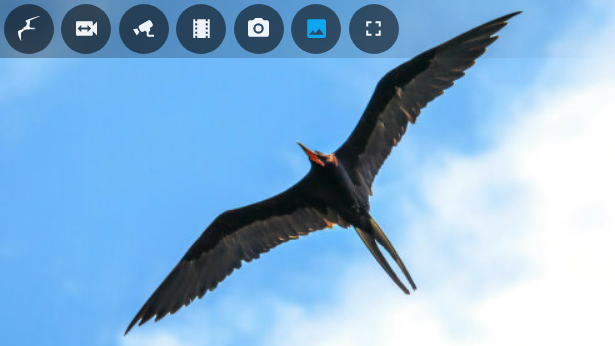
| `mode` | `url` | :white_check_mark: | Mode of the the `image` [view](#views). Value must be one of `url` (to fetch an arbitrary image URL), `camera` (to show a still of the currently selected camera using either `camera_entity` or `webrtc_card.entity` in that order of precedence), or `screensaver` (to show an [embedded stock Frigate card logo](https://github.com/dermotduffy/frigate-hass-card/blob/main/src/images/frigate-bird-in-sky.jpg)). In either `url` or `camera` mode, the `screensaver` content is used as a fallback if a URL is not specified or cannot be derived. |
| `url` | | :white_check_mark: | A static image URL to be used when the `mode` is set to `url` or when a temporary image is required (e.g. may appear momentarily prior to load of a camera snapshot in the `camera` mode). Note that a `_t=[timestsamp]` query parameter will be automatically added to all URLs such that the image will not be cached by the browser.|
| `refresh_seconds` | 0 | :white_check_mark: | The image will be refreshed at least every `refresh_seconds` (it may refresh more frequently, e.g. whenever Home Assistant updates its camera security token). `0` implies no refreshing. |
| `actions` | | :white_check_mark: | Actions to use for the `image` view. See [actions](#actions) below.|
### Timeline Options
The `timeline` is used to show the timing sequence of events and recordings across cameras. You can interact with the timeline in a number of ways:
* Clicking on an event will take you to the media viewer for that event.
* Clicking on the "background", or a camera title, will take you to the recordings for that camera (seeking to the clicked time).
* Clicking on the time axis will take you to recordings for all cameras (seeking to the clicked time).
All configuration is under:
```yaml
timeline:
```
See the [fully expanded timeline configuration example](#config-expanded-timeline) for how these parameters are structured.
| Option | Default | Overridable | Description |
| - | - | - | - |
| `window_seconds` | `3600` | :heavy_multiplication_x: | The length of the default timeline in seconds. By default, 1 hour (`3600` seconds) is shown in the timeline. |
| `clustering_threshold` | `3` | :heavy_multiplication_x: | The number of overlapping events to allow prior to clustering/grouping them. Higher numbers cause clustering to happen less frequently. `0` disables clustering entirely.|
| `media` | `all` | :heavy_multiplication_x: | Whether to show only events with `clips`, events with `snapshots` or `all` events. When `all` is used, `clips` are favored for events that have both a clip and a snapshot.|
| `show_recordings` | `true` | :heavy_multiplication_x: | Whether to show recordings on the timeline (specifically: which hours have any recorded content).|
| `controls` | | :heavy_multiplication_x: | Configuration for the timeline controls. See below.|
| `actions` | | :heavy_multiplication_x: | Actions to use for the `timeline` views. See [actions](#actions) below.|
#### Timeline Controls: Thumbnails
All configuration is under:
```yaml
timeline:
controls:
thumbnails:
```
| Option | Default | Overridable | Description |
| - | - | - | - |
| `mode` | `none` | :heavy_multiplication_x: | Whether to show the thumbnail carousel `below` the media, `above` the media, in a drawer to the `left` or `right` of the media or to hide it entirely (`none`).|
| `size` | 100 | :heavy_multiplication_x: | The size of the thumbnails in the thumbnail carousel in pixels. Must be >= `75` and <= `175`.|
| `show_details` | `false` | :heavy_multiplication_x: | Whether to show event details (e.g. duration, start time, object detected, etc) alongside the thumbnail.|
| `show_controls` | `true` | :heavy_multiplication_x: | Whether to show event controls (e.g. timeline icon, favorite icon) alongside the thumbnail.|
### Dimensions Options
All configuration is under:
```yaml
dimensions:
```
See the [fully expanded dimensions configuration example](#config-expanded-dimensions) for how these parameters are structured.
| Option | Default | Overridable | Description |
| - | - | - | - |
| `aspect_ratio_mode` | `dynamic` | :heavy_multiplication_x: | The aspect ratio mode to use. Acceptable values: `dynamic`, `static`, `unconstrained`. See [aspect ratios](#aspect-ratios) below.|
| `aspect_ratio` | `16:9` | :heavy_multiplication_x: | The aspect ratio to use. Acceptable values: `:` or `/`. See [aspect ratios](#aspect-ratios) below.|
#### `dimensions.aspect_ratio_mode`:
| Option | Description |
| ------------- | --------------------------------------------- |
| `dynamic` | The aspect-ratio of the card will match the aspect-ratio of the last loaded media. |
| `static` | A fixed aspect-ratio (as defined by `dimensions.aspect_ratio`) will be applied to all views. |
| `unconstrained` | No aspect ratio is enforced in any view, the card will expand with the content (may be especially useful for a panel-mode dashboard). |
#### `dimensions.aspect_ratio`:
* `16 / 9` or `16:9`: Default widescreen ratio.
* `4 / 3` or `4:3`: Default fullscreen ratio.
* `/` or `:`: Any arbitrary aspect-ratio.
#### Aspect Ratio
The card can show live cameras, stored events (clip or snapshot) and an event
gallery (clips or snapshots). Of these [views](#views), the gallery views have
no intrinsic aspect-ratio, whereas the other views have the aspect-ratio of the
media.
The card aspect ratio can be changed with the `dimensions.aspect_ratio_mode` and
`dimensions.aspect_ratio` options described above.
If no aspect ratio is specified or available, but one is needed then `16:9` will
be used by default.
### Overrides Options
All configuration is a list under:
```yaml
overrides:
```
See the [fully expanded overrides configuration example](#config-expanded-overrides) for how these parameters are structured.
Various parts of this configuration may conditionally (see [Frigate Card
Conditions](#frigate-card-conditions)) be overridden, for example to use custom
WebRTC parameters for a particular camera or to hide the menu in fullscreen mode.
Not all configuration parameters are overriddable (only those with check marks
in this documentation) -- some because it doesn't make sense for that parameter
to vary, and many because of the extra complexity of supporting overriding given
the lack of compelling usecases ([please request new overridable parameters
here!](https://github.com/dermotduffy/frigate-hass-card/issues/new/choose)).
Each entry under the top-level `overrides` configuration block should be a list
item, that has both of the following parameters set:
| Option | Default | Overridable | Description |
| - | - | - | - |
| `conditions` | | :heavy_multiplication_x: | A set of conditions that must evaluate to `true` in order for the overrides to be applied. See [Frigate Card Conditions](#frigate-card-conditions). |
| `overrides` | | :heavy_multiplication_x: |Configuration overrides to be applied. Any configuration parameter described in this documentation as 'Overridable' is supported. |
### Using AlexxIT's WebRTC Card
WebRTC Card support blends the use of the ultra-realtime [WebRTC card live
view](https://github.com/AlexxIT/WebRTC) with convenient access to Frigate
events/snapshots/UI. A perfect combination!
| ♥️ This card is under active development. Be sure to consult the documentation that matches the release of the card you're using, rather than the documentation at head. README for latest stable release: [v3.0](https://github.com/dermotduffy/frigate-hass-card/blob/v3.0.0/README.md) |
| - |
# Frigate Lovelace Card
A full-featured Frigate Lovelace card:
* Live viewing of multiple cameras.
* Clips and snapshot browsing via mini-gallery.
* Automatic updating to continually show latest clip / snapshot.
* Support for filtering events by zone and label.
* Arbitrary entity access via menu (e.g. motion sensor access).
* Fullscreen mode.
* Carousel/Swipeable media, thumbnails and cameras.
* Direct media downloads.
* Lovelace visual editing support.
* Full [Picture Elements](https://www.home-assistant.io/lovelace/picture-elements/) support.
* Theme friendly.
## Screenshots Below!
See more [screenshots](#screenshots) below.
## Installation
* [HACS](https://hacs.xyz/) is **highly** recommended to install the card -- it works for all Home Assistant variants. If you don't have [HACS](https://hacs.xyz/) installed, start there -- then come back to these instructions.
* Find the card in HACS:
```
Home Assistant > HACS > Frontend > "Explore & Add Integrations" > Frigate Card
```
* Click `Download this repository with HACS`.
#### Lovelace YAML users
If Lovelace is in YAML mode then there's an additional step required to load the resource into your browser. (This mode is not the default -- you would see`mode: yaml` under `lovelace:` in your `configuration.yaml` if this applies to you),
* Add the following to `configuration.yaml` (note that `/hacsfiles/` is just an [optimized equivalent](https://hacs.xyz/docs/categories/plugins#custom-view-hacsfiles) of `/local/community/` that HACS natively supports):
```yaml
lovelace:
resources:
- url: /hacsfiles/frigate-hass-card/frigate-hass-card.js
type: module
```
* Restart Home Assistant.
* Add the new card to the Lovelace configuration!
### Advanced Users: Manual Installation
**Note:** This is very rarely needed unless you are developing the card. Please consider HACS (above)!
* Download the `frigate-hass-card.js` attachment of the desired [release](https://github.com/dermotduffy/frigate-hass-card/releases) to a location accessible by Home Assistant.
* Add the location as a Lovelace resource via the UI, or via [YAML configuration](https://www.home-assistant.io/lovelace/dashboards/#resources)) such as:
```yaml
lovelace:
mode: yaml
resources:
- url: /local/frigate-hass-card.js
type: module
```
## Configuration
At least 1 camera must be configured in the `cameras` section, but otherwise all configuration parameters are optional.
### Camera Options
The `cameras` block configures a list of cameras the card should support. The first listed camera is the default. Camera configuration is under:
```yaml
cameras:
- [...camera 0 (default camera)...]
- [...camera 1...]
- [...camera 2...]
```
See the [fully expanded cameras configuration example](#config-expanded-cameras) for how these parameters are structured.
| Option | Default | Overridable | Description |
| - | - | - | - |
| `camera_entity` | | :heavy_multiplication_x: | The Home Assistant camera entity to use with the `frigate` live provider view. Also used to automatically detect the name of the underlying Frigate camera, and the title/icon of the camera. |
| `live_provider` | `auto` | :heavy_multiplication_x: | The choice of live stream provider. See [Live Providers](#live-providers) below.|
| `title` | Autodetected from `camera_entity` if that is specified. | :heavy_multiplication_x: | A friendly name for this camera to use in the card. |
| `icon` | Autodetected from `camera_entity` if that is specified. | :heavy_multiplication_x: | The icon to use for this camera in the camera menu and in the next & previous controls when using the `icon` style. |
| `id` | `camera_entity`, `webrtc_card.entity` or `frigate.camera_name` if set (in that preference order). | :heavy_multiplication_x: | An optional identifier to use throughout the card configuration to refer unambiguously to this camera. See [camera IDs](#camera-ids). |
| `frigate` | | :heavy_multiplication_x: | Options for a Frigate camera. See [Frigate configuration](#camera-frigate-configuration) below. |
| `dependencies` | | :heavy_multiplication_x: | Other cameras that this camera should depend upon. See [camera dependencies](#camera-dependencies-configuration) below. |
| `triggers` | | :heavy_multiplication_x: | Define what should cause this camera to update/trigger. See [camera triggers](#camera-trigger-configuration) below. |
| `webrtc_card` | | :heavy_multiplication_x: | The WebRTC entity/URL to use for this camera with the `webrtc-card` live provider. See below. |
#### Available Live Providers
|Live Provider|Latency|Frame Rate|Installation|Description|
| -- | -- | -- | -- | -- |
|`ha` (default HA configuration)|Poor|High|Builtin|Use the built-in Home Assistant camera stream. The camera doesn't even need to be a Frigate camera! |
|`ha` (when configured with LL-HLS)|Better|High|Builtin|Use the built-in Home Assistant camera streams -- can be configured to use an [LL-HLS](https://www.home-assistant.io/integrations/stream/#ll-hls) feed for lower latency.|
|`ha` (Native WebRTC)|Best|High|Builtin|Use the built-in Home Assistant camera streams -- can be configured to use [native WebRTC](https://www.home-assistant.io/integrations/rtsp_to_webrtc/) offering a very low-latency feed direct to your browser.|
|`frigate-jsmpeg`|Better|Low|Builtin|Stream the JSMPEG stream from Frigate (proxied via the Frigate integration). See [note below on the required integration version](#jsmpeg-troubleshooting) for this live provider to function. This is the only live provider that can view the Frigate `birdseye` view.|
|`webrtc-card`|Best|High|Separate installation required|Embed's [AlexxIT's WebRTC Card](https://github.com/AlexxIT/WebRTC) to stream live feed, requires manual extra setup, see [below](#webrtc). Not to be confused with native Home Assistant WebRTC (use `ha` provider above).|
#### Camera Frigate configuration
The `frigate` block configures options for a Frigate camera. This configuration is included as part of a camera entry in the `cameras` array.
```yaml
cameras:
- frigate:
```
| Option | Default | Overridable | Description |
| - | - | - | - |
| `camera_name` | Autodetected from `camera_entity` if that is specified. | :heavy_multiplication_x: | The Frigate camera name to use when communicating with the Frigate server, e.g. for viewing clips/snapshots or the JSMPEG live view. To view the birdseye view set this to `birdseye` and use the `frigate-jsmpeg` live provider.|
| `url` | | :heavy_multiplication_x: | The URL of the frigate server. If set, this value will be (exclusively) used for a `Frigate UI` menu button. All other communication with Frigate goes via Home Assistant. |
| `label` | | :heavy_multiplication_x: | A Frigate label / object filter used to filter events (clips & snapshots), e.g. `person`.|
| `zone` | | :heavy_multiplication_x: | A Frigate zone used to filter events (clips & snapshots), e.g. `front_door`.|
| `client_id` | `frigate` | :heavy_multiplication_x: | The Frigate client id to use. If this Home Assistant server has multiple Frigate server backends configured, this selects which server should be used. It should be set to the MQTT client id configured for this server, see [Frigate Integration Multiple Instance Support](https://docs.frigate.video/integrations/home-assistant/#multiple-instance-support).|
#### Camera WebRTC Card configuration
The `webrtc_card` block configures only the entity/URL for this camera to be used with the WebRTC Card live provider. This configuration is included as part of a camera entry in the `cameras` array.
```yaml
cameras:
- webrtc_card:
```
| Option | Default | Overridable | Description |
| - | - | - | - |
| `entity` | | :heavy_multiplication_x: | The RTSP entity to pass to the WebRTC Card for this camera. Specify this OR `url` (below). |
| `url` | | :heavy_multiplication_x: | The RTSP url to pass to the WebRTC Card. Specify this OR `entity` (above). |
See [Using the WebRTC Card](#webrtc) below for more details on how to use the WebRTC Card live provider.
#### Camera Dependency Configuration
The `dependencies` block configures other cameras as dependents of this camera. Dependent cameras have their events fetched and merged with this camera. Configuration is under:
```yaml
cameras:
- dependencies:
```
| Option | Default | Overridable | Description |
| - | - | - | - |
| `cameras` | | :heavy_multiplication_x: | An optional array of other camera identifiers (see [camera IDs](#camera-ids)). If specified the card will fetch events for this camera and *also* recursively events for the named cameras. All dependent cameras must themselves be a configured camera in the card. This can be useful to group events for cameras that are close together, to always have clips/snapshots show fully merged events across all cameras or to show events for the `birdseye` camera that otherwise would not have events itself.|
| `all_cameras` | `false` | :heavy_multiplication_x: | Shortcut to specify all other cameras as dependent cameras.|
#### Camera Trigger Configuration
The `triggers` block configures what triggers a camera. Triggering can be used to either reset to the default view / update the card, or active the camera in [scan mode](#scan-mode).
```yaml
cameras:
- triggers:
```
| Option | Default | Overridable | Description |
| - | - | - | - |
| `motion` | `false` | :heavy_multiplication_x: | Whether to not to trigger the camera by automatically detecting and using the motion `binary_sensor` for this camera. This autodetection only works for Frigate cameras, and only when the motion `binary_sensor` entity has been enabled in Home Assistant.|
| `occupancy` | `true` | :heavy_multiplication_x: | Whether to not to trigger the camera by automatically detecting and using the occupancy `binary_sensor` for this camera. This autodetection only works for Frigate cameras, and only when the occupancy `binary_sensor` entity has been enabled in Home Assistant.|
| `entities` | | :heavy_multiplication_x: | Whether to not to trigger the camera when the state of any Home Assistant entity becomes active (i.e. state becomes `on` or `open`). This works for Frigate or non-Frigate cameras.|
#### Camera IDs: Refering to cameras in card configuration
Each camera configured in the card has a single identifier (`id`). For a given camera, this will be one of the camera {`id`, `camera_entity`, `webrtc_card.entity` or `frigate.camera_name`} parameters for that camera -- in that order of precedence. These ids may be used in conditions, dependencies or custom actions to refer to a given camera unambiguously. |
#### Example
See [the basic cameras configuration example](#basic-cameras-configuration) below.
### View Options
All configuration is under:
```yaml
view:
```
See the [fully expanded view configuration example](#config-expanded-view) for how these parameters are structured.
| Option | Default | Overridable | Description |
| - | - | - | - |
| `default` | `live` | :white_check_mark: | The view to show in the card by default. The default camera is the first one listed. See [views](#views) below.|
| `camera_select` | `current` | :white_check_mark: | The view to show when a new camera is selected (e.g. in the camera menu). If `current` the view is unchanged when a new camera is selected. Other acceptable values may be seen at [views](#views) below.|
| `dark_mode` | `off` | :white_check_mark: | Whether or not to turn dark mode `on`, `off` or `auto` to automatically turn on if the card `timeout_seconds` has expired (i.e. card has been left unattended for that period of time) or if dark mode is enabled in the HA profile theme setting. Dark mode dims the brightness by `25%`.|
| `timeout_seconds` | `300` | :white_check_mark: | A numbers of seconds of inactivity after user interaction, after which the card will reset to the default configured view (i.e. 'screensaver' functionality). Inactivity is defined as lack of mouse/touch interaction with the Frigate card. If the default view occurs sooner (e.g. via `update_seconds` or manually) the timer will be stopped. `0` means disable this functionality. |
| `update_seconds` | `0` | :white_check_mark: | A number of seconds after which to automatically update/refresh the default view. See [card updates](#card-updates) below for behavior and usecases. If the default view occurs sooner (e.g. manually) the timer will start over. `0` disables this functionality.|
| `update_force` | `false` | :white_check_mark: | Whether automated card updates/refreshes should ignore user interaction. See [card updates](#card-updates) below for behavior and usecases.|
| `update_entities` | | :white_check_mark: | **YAML only**: A card-wide list of entities that should cause the view to reset to the default (if the entity only pertains to a particular camera use `triggers` for the selected camera instead, see [Trigger Configuration](#camera-triggers-configuration)). See [card updates](#card-updates) below for behavior and usecases.|
| `update_cycle_camera` | `false` | :white_check_mark: | When set to `true` the selected camera is cycled on each default view change. |
| `render_entities` | | :white_check_mark: | **YAML only**: A list of entity ids that should cause the card to re-render 'in-place'. The view/camera is not changed. `update_*` flags do not pertain/relate to the behavior of this flag. This should **very** rarely be needed, but could be useful if the card is both setting and changing HA state of the same object as could be the case for some complex `card_mod` scenarios ([example](https://github.com/dermotduffy/frigate-hass-card/issues/343)). |
| `scan` | | :white_check_mark: | Configuration for [scan mode](#scan-mode). |
| `actions` | | :white_check_mark: | Actions to use for all views, individual actions may be overriden by view-specific actions. See [actions](#actions) below.|
#### View: Scan Mode configuration
All configuration is under:
```yaml
view:
scan:
```
Scan mode allows the card to automatically "follow the action". In this mode the card will automatically select a camera in the `live` view when an entity changes to an active state (specifically `on` or `open`). The entities considered are defined by your camera configuration (see `triggers` parameters). An untrigger is defined as the state for all the configured entities returning to inactive (i.e. not `on` or `open`), with an optional number of seconds to wait prior to the untriggering (see `untrigger_seconds`).
When the camera untriggers, the view will either remain as-is (if `untrigger_reset` is `false`) and the card return to normal operation, or reset to the default view (if `untrigger_reset` is `true` -- the default).
Triggering is only allowed when there is no ongoing human interaction with the card -- interaction will automatically untrigger and further triggering will not occur until after the card has been unattended for `view.timeout_seconds`.
Scan mode tracks Home Assistant state *changes* -- when the card is first started, it takes an active change in state to trigger (i.e. an already occupied room will not trigger it, but a newly occupied room will).
| Option | Default | Overridable | Description |
| - | - | - | - |
| `enabled` | `false` | :white_check_mark: | Whether to enable scan mode. |
| `show_trigger_status` | `true` | :white_check_mark: | Whether or not the card should show a visual indication that it is triggered (a pulsing border around the card edge). |
| `untrigger_reset` | `true` | :white_check_mark: | Whether or not to reset the view to the default after untriggering. |
| `untrigger_seconds` | `0` | :white_check_mark: | The number of seconds to wait after all entities are inactive before untriggering. |
### Menu Options
All configuration is under:
```yaml
menu:
```
See the [fully expanded menu configuration example](#config-expanded-menu) for how these parameters are structured.
| Option | Default | Overridable | Description |
| - | - | - | - |
| `style` | `hidden` | :white_check_mark: | The menu style to show by default, one of `none`, `hidden`, `hover`, `overlay`, or `outside`. See [menu styles](#menu-styles) below.|
| `position` | `top` | :white_check_mark: | Whether to show the menu on the `left`, `right`, `top` or `bottom` side of the card. Note that for the `outside` style only the `top` and `bottom` positions have an effect.|
| `alignment` | `left` | :white_check_mark: | Whether to align the menu buttons to the `left`, `right`, `top` or `bottom` of the menu. Some selections may have no effect depending on the value of `position` (e.g. it doesn't make sense to `left` align icons on a menu with `position` to the `left`).|
| `button_size` | 40 | :white_check_mark: | The size of the menu buttons in pixels. Must be >= `20`.|
| `buttons` | | :white_check_mark: | Whether to show or hide built-in buttons. See below. |
#### Menu Options: Buttons
All configuration is under:
```yaml
menu:
buttons:
[button]:
```
##### Buttons
| Option | Overridable | Description |
| - | - | - |
| `frigate` | :white_check_mark: | The `Frigate` menu button: brings the user to the default configured view (`view.default`), or collapses/expands the menu if the `menu.style` is `hidden` . |
| `cameras` | :white_check_mark: | The camera selection submenu. Will only appear if multiple cameras are configured. |
| `live` | :white_check_mark: | The `live` view menu button: brings the user to the `live` view. See [views](#views) below.|
| `clips` | :white_check_mark: | The `clips` view menu button: brings the user to the `clips` view on tap and the most-recent `clip` view on hold. See [views](#views) below. This button will never be shown if the `frigate.camera_name` for the selected camera is not auto-detected/specified (e.g. non-Frigate cameras), or if the `frigate.camera_name` is `birdseye`.|
| `snapshots` | :white_check_mark: | The `snapshots` view menu button: brings the user to the `clips` view on tap and the most-recent `snapshot` view on hold. See [views](#views) below. This button will never be shown if the `frigate.camera_name` for the selected camera is not auto-detected/specified (e.g. non-Frigate cameras), or if the `frigate.camera_name` is `birdseye`.|
| `image` | :white_check_mark: | The `image` view menu button: brings the user to the static `image` view. See [views](#views) below.|
| `download` | :white_check_mark: | The `download` menu button: allow direct download of the media being displayed.|
| `frigate_ui` | :white_check_mark: | The `frigate_ui` menu button: brings the user to a context-appropriate page on the Frigate UI (e.g. the camera homepage). Will only appear if the `frigate.url` option is set.|
| `fullscreen` | :white_check_mark: | The `fullscreen` menu button: expand the card to consume the fullscreen. |
| `timeline` | :white_check_mark: | The `timeline` menu button: show the event timeline. |
| `media_player` | :white_check_mark: | The `media_player` menu button: sends the visible media to a remote media player. Supports Frigate clips, snapshots and live camera (only for cameras that specify a `camera_entity` and only using the default HA stream (equivalent to the `ha` live provider). `jsmpeg` or `webrtc-card` are not supported, although live can still be played as long as `camera_entity` is specified. In the player list, a `tap` will send the media to the player, a `hold` will stop the media on the player. |
##### Configuration on each button
| Option | Default | Overridable | Description |
| - | - | - | - |
| `enabled` | `true` for all buttons except `image` | :white_check_mark: | Whether or not to show the button. |
| `priority` | `50` | :white_check_mark: | The button priority. Higher priority buttons are ordered closer to the start of the menu alignment (i.e. a button with priority `70` will order further to the left than a button with priority `60`, when the menu alignment is `left`). Minimum `0`, maximum `100`.|
| `icon` | | :white_check_mark: | An icon to overriding the default for that button, e.g. `mdi:camera-front`. |
| `alignment` | `matching` | :white_check_mark: | Whether this button should have an alignment that is `matching` the menu alignment or `opposing` the menu. Can be used to create two separate groups of buttons on the menu. `priority` orders buttons within a given `alignment`. |
### Live Options
All configuration is under:
```yaml
live:
```
See the [fully expanded live configuration example](#config-expanded-live) for how these parameters are structured.
| Option | Default | Overridable | Description |
| - | - | - | - |
| `preload` | `false` | :heavy_multiplication_x: | Whether or not to preload the live view. Preloading causes the live view to render in the background regardless of what view is actually shown, so it's instantly available when requested. This consumes additional network/CPU resources continually. |
| `auto_play` | `all` | :heavy_multiplication_x: | Whether to automatically play live camera feeds. `never` will never automatically play, `selected` will automatically play when a camera is selected in the carousel, `visible` will automatically play when the browser/tab becomes visible or `all` on any opportunity to automatically play (i.e. either case). Some live providers (e.g. `webrtc-card`, `jsmpeg`) do not support the prevention of automatic play on initial load, but should still respect the value of this flag on play-after-pause.|
| `auto_pause` | `never` | :heavy_multiplication_x: | Whether to automatically pause live camera feeds. `never` will never automatically pause, `unselected` will automatically pause when a camera is unselected in the carousel, `hidden` will automatically pause when the browser/tab becomes hidden or `all` on any opportunity to automatically pause (i.e. either case). **Caution**: Some live providers (e.g. `jsmpeg`) may not offer human-accessible means to resume play if it is paused, unless the `auto_play` option (above) is used.|
| `auto_mute` | `all` | :heavy_multiplication_x: | Whether to automatically mute live camera feeds. `never` will never automatically mute, `unselected` will automatically mute when a camera is unselected in the carousel, `hidden` will automatically mute when the browser/tab becomes hidden or `all` on any opportunity to automatically mute (i.e. either case).|
| `auto_unmute` | `never` | :heavy_multiplication_x: | Whether to automatically unmute live camera feeds. `never` will never automatically unmute, `selected` will automatically unmute when a camera is unselected in the carousel, `visible` will automatically unmute when the browser/tab becomes visible or `all` on any opportunity to automatically unmute (i.e. either case).|
| `lazy_load` | `true` | :heavy_multiplication_x: | Whether or not to lazily load cameras in the camera carousel. Setting this will `false` will cause all cameras to load simultaneously when the `live` carousel is opened (or cause all cameras to load continually if both `lazy_load` and `preload` are `true`). This will result in a smoother carousel experience at a cost of (potentially) a substantial amount of continually streamed data. |
| `lazy_unload` | `never` | :heavy_multiplication_x: | When to lazily **un**load lazyily-loaded cameras. `never` will never lazily-unload, `unselected` will lazy-unload a camera when it is unselected in the carousel, `hidden` will lazy-unload all cameras when the browser/tab becomes hidden or `all` on any opportunity to lazily unload (i.e. either case). This will cause a reloading delay on revisiting that camera in the carousel but will save the streaming network resources that are otherwise consumed. This option has no effect if `lazy_load` is false. Some live providers (e.g. `webrtc-card`) implement their own lazy unloading independently which may occur regardless of the value of this setting.|
| `draggable` | `true` | :heavy_multiplication_x: | Whether or not the live carousel can be dragged left or right, via touch/swipe and mouse dragging. |
| `transition_effect` | `slide` | :heavy_multiplication_x: | Effect to apply as a transition between live cameras. Accepted values: `slide` or `none`. |
| `actions` | | :white_check_mark: | Actions to use for the `live` view. See [actions](#actions) below.|
| `controls` | | :white_check_mark: | Configuration for the `live` view controls. See below. |
| `jsmpeg` | | :white_check_mark: | Configuration for the `frigate-jsmpeg` live provider. See below.|
| `webrtc_card` | | :white_check_mark: | Configuration for the `webrtc-card` live provider. See below.|
#### Live Provider: JSMPEG Configuration
All configuration is under:
```yaml
live:
jsmpeg:
```
| Option | Default | Overridable | Description |
| - | - | - | - |
| `options` | | :white_check_mark: | **Advanced users only**: Control the underlying [JSMPEG library options](https://github.com/phoboslab/jsmpeg#usage). Supports setting these JSMPEG options `{audio, video, pauseWhenHidden, disableGl, disableWebAssembly, preserveDrawingBuffer, progressive, throttled, chunkSize, maxAudioLag, videoBufferSize, audioBufferSize}`. This is not necessary for the vast majority of users: only set these flags if you know what you're doing, as you may entirely break video rendering in the card.|
#### Live Provider: WebRTC Card Configuration
All configuration is under:
```yaml
live:
webrtc_card:
```
| Option | Default | Overridable | Description |
| - | - | - | - |
| `*`| | :white_check_mark: | Any options specified in the `webrtc_card:` YAML dictionary are silently passed through to the AlexxIT's WebRTC Card. See [WebRTC Configuration](https://github.com/AlexxIT/WebRTC#configuration) for full details this external card provides. This implies that if `entity` or `url` are specified here they will override the matching named parameters under the per camera configuration. |
See [Using WebRTC Card](#webrtc) below for more details on how to embed AlexxIT's WebRTC Card with the Frigate Card.
#### Live Controls: Thumbnails
All configuration is under:
```yaml
live:
controls:
thumbnails:
```
| Option | Default | Overridable | Description |
| - | - | - | - |
| `mode` | `none` | :white_check_mark: | Whether to show the thumbnail carousel `below` the media, `above` the media, in a drawer to the `left` or `right` of the media or to hide it entirely (`none`).|
| `size` | 100 | :white_check_mark: | The size of the thumbnails in the thumbnail carousel in pixels. Must be >= `75` and <= `175`. |
| `show_details` | `false` | :white_check_mark: | Whether to show event details (e.g. duration, start time, object detected, etc) alongside the thumbnail.|
| `show_controls` | `true` | :white_check_mark: | Whether to show event controls (e.g. timeline icon, favorite icon) alongside the thumbnail.|
| `media` | `clips` | :white_check_mark: | Whether to show `clips` or `snapshots` in the thumbnail carousel in the `live` view.|
#### Live Controls: Next / Previous
All configuration is under:
```yaml
live:
controls:
next_previous:
```
| Option | Default | Overridable | Description |
| - | - | - | - |
| `style` | `chevrons` | :white_check_mark: | When viewing live cameras, what kind of controls to show to move to the previous/next camera. Acceptable values: `chevrons`, `icons`, `none` . |
| `size` | 48 | :white_check_mark: | The size of the next/previous controls in pixels. Must be >= `20`. |
#### Live Controls: Title
All configuration is under:
```yaml
live:
controls:
title:
```
| Option | Default | Overridable | Description |
| - | - | - | - |
| `mode` | `popup-bottom-right` | :white_check_mark: | How to display the live camera title. Acceptable values: `none`, `popup-top-left`, `popup-top-right`, `popup-bottom-left`, `popup-bottom-right` . |
| `duration_seconds` | `2` | :white_check_mark: | The number of seconds to display the title popup. `0` implies forever.|
### Media Viewer Options
The `media_viewer` is used for viewing all `clip`, `snapshot` or recording media, in a media carousel.
All configuration is under:
```yaml
media_viewer:
```
See the [fully expanded Media viewer configuration example](#config-expanded-media-viewer) for how these parameters are structured.
| Option | Default | Overridable | Description |
| - | - | - | - |
| `auto_play` | `all` | :heavy_multiplication_x: | Whether to automatically play events. `never` will never automatically play, `selected` will automatically play when an event is selected in the carousel, `visible` will automatically play when the browser/tab becomes visible or `all` on any opportunity to automatically play (i.e. either case).|
| `auto_pause` | `all` | :heavy_multiplication_x: | Whether to automatically pause events. `never` will never automatically pause, `unselected` will automatically pause when an event is unselected in the carousel, `hidden` will automatically pause when the browser/tab becomes hidden or `all` on any opportunity to automatically pause (i.e. either case).|
| `auto_mute` | `all` | :heavy_multiplication_x: | Whether to automatically mute events. `never` will never automatically mute, `unselected` will automatically mute when an event is unselected in the carousel, `hidden` will automatically mute when the browser/tab becomes hidden or `all` on any opportunity to automatically mute (i.e. either case).|
| `auto_unmute` | `never` | :heavy_multiplication_x: | Whether to automatically unmute events. `never` will never automatically unmute, `selected` will automatically unmute when an event is selected in the carousel, `visible` will automatically unmute when the browser/tab becomes visible or `all` on any opportunity to automatically unmute (i.e. either case). Note that some browsers will not allow automated unmute until the user has interacted with the page in some way -- if the user has not then the browser may pause the media instead.|
| `lazy_load` | `true` | :heavy_multiplication_x: | Whether or not to lazily load media in the Media viewer carousel. Setting this will false will fetch all media immediately which may make the carousel experience smoother at a cost of (potentially) a substantial number of simultaneous media fetches on load. |
| `draggable` | `true` | :heavy_multiplication_x: | Whether or not the Media viewer carousel can be dragged left or right, via touch/swipe and mouse dragging. |
| `transition_effect` | `slide` | :heavy_multiplication_x: | Effect to apply as a transition between event media. Accepted values: `slide` or `none`. |
| `controls` | | :heavy_multiplication_x: | Configuration for the Media viewer controls. See below. |
| `actions` | | :heavy_multiplication_x: | Actions to use for all views that use the `media_viewer` (e.g. `clip`, `snapshot`). See [actions](#actions) below.|
#### Media Viewer Controls: Next / Previous
All configuration is under:
```yaml
media_viewer:
controls:
next_previous:
```
| Option | Default | Overridable | Description |
| - | - | - | - |
| `style` | `thumbnails` | :heavy_multiplication_x: | When viewing media, what kind of controls to show to move to the previous/next media item. Acceptable values: `thumbnails`, `chevrons`, `none` . |
| `size` | 48 | :heavy_multiplication_x: | The size of the next/previous controls in pixels. Must be >= `20`.|
#### Media Viewer Controls: Thumbnails
All configuration is under:
```yaml
media_viewer:
controls:
thumbnails:
```
| Option | Default | Overridable | Description |
| - | - | - | - |
| `mode` | `none` | :heavy_multiplication_x: | Whether to show the thumbnail carousel `below` the media, `above` the media, in a drawer to the `left` or `right` of the media or to hide it entirely (`none`).|
| `size` | 100 | :heavy_multiplication_x: | The size of the thumbnails in the thumbnail carousel pixels. Must be >= `75` and <= `175`.|
| `show_details` | `false` | :heavy_multiplication_x: | Whether to show event details (e.g. duration, start time, object detected, etc) alongside the thumbnail.|
| `show_controls` | `true` | :heavy_multiplication_x: | Whether to show event controls (e.g. timeline icon, favorite icon) alongside the thumbnail.|
#### Media Viewer Controls: Title
All configuration is under:
```yaml
media_viewer:
controls:
title:
```
| Option | Default | Overridable | Description |
| - | - | - | - |
| `mode` | `popup-bottom-right` | :heavy_multiplication_x: | How to display the Media viewer media title. Acceptable values: `none`, `popup-top-left`, `popup-top-right`, `popup-bottom-left`, `popup-bottom-right` . |
| `duration_seconds` | `2` | :heavy_multiplication_x: | The number of seconds to display the title popup. `0` implies forever.|
### Event Gallery Options
The `event_gallery` is used for providing an overview of all `clips` and `snapshots` in a thumbnail gallery.
All configuration is under:
```yaml
event_gallery:
```
See the [fully expanded event gallery configuration example](#config-expanded-event-gallery) for how these parameters are structured.
| Option | Default | Overridable | Description |
| - | - | - | - |
| `size` | 100 | :heavy_multiplication_x: | The size of the thumbnails in the event gallery in pixels. Must be >= `75` and <= `175`.|
| `show_details` | `false` | :heavy_multiplication_x: | Whether to show event details (e.g. duration, start time, object detected, etc) alongside the thumbnail.|
| `show_controls` | `true` | :heavy_multiplication_x: | Whether to show event controls (e.g. timeline icon, favorite icon) alongside the thumbnail.|
| `actions` | | :heavy_multiplication_x: | Actions to use for all views that use the `event_gallery` (e.g. `clips`, `snapshots`). See [actions](#actions) below.|
### Image Options
All configuration is under:
```yaml
image:
```
See the [fully expanded image configuration example](#config-expanded-image) for how these parameters are structured.
| Option | Default | Overridable | Description |
| - | - | - | - |
| `mode` | `url` | :white_check_mark: | Mode of the the `image` [view](#views). Value must be one of `url` (to fetch an arbitrary image URL), `camera` (to show a still of the currently selected camera using either `camera_entity` or `webrtc_card.entity` in that order of precedence), or `screensaver` (to show an [embedded stock Frigate card logo](https://github.com/dermotduffy/frigate-hass-card/blob/main/src/images/frigate-bird-in-sky.jpg)). In either `url` or `camera` mode, the `screensaver` content is used as a fallback if a URL is not specified or cannot be derived. |
| `url` | | :white_check_mark: | A static image URL to be used when the `mode` is set to `url` or when a temporary image is required (e.g. may appear momentarily prior to load of a camera snapshot in the `camera` mode). Note that a `_t=[timestsamp]` query parameter will be automatically added to all URLs such that the image will not be cached by the browser.|
| `refresh_seconds` | 0 | :white_check_mark: | The image will be refreshed at least every `refresh_seconds` (it may refresh more frequently, e.g. whenever Home Assistant updates its camera security token). `0` implies no refreshing. |
| `actions` | | :white_check_mark: | Actions to use for the `image` view. See [actions](#actions) below.|
### Timeline Options
The `timeline` is used to show the timing sequence of events and recordings across cameras. You can interact with the timeline in a number of ways:
* Clicking on an event will take you to the media viewer for that event.
* Clicking on the "background", or a camera title, will take you to the recordings for that camera (seeking to the clicked time).
* Clicking on the time axis will take you to recordings for all cameras (seeking to the clicked time).
All configuration is under:
```yaml
timeline:
```
See the [fully expanded timeline configuration example](#config-expanded-timeline) for how these parameters are structured.
| Option | Default | Overridable | Description |
| - | - | - | - |
| `window_seconds` | `3600` | :heavy_multiplication_x: | The length of the default timeline in seconds. By default, 1 hour (`3600` seconds) is shown in the timeline. |
| `clustering_threshold` | `3` | :heavy_multiplication_x: | The number of overlapping events to allow prior to clustering/grouping them. Higher numbers cause clustering to happen less frequently. `0` disables clustering entirely.|
| `media` | `all` | :heavy_multiplication_x: | Whether to show only events with `clips`, events with `snapshots` or `all` events. When `all` is used, `clips` are favored for events that have both a clip and a snapshot.|
| `show_recordings` | `true` | :heavy_multiplication_x: | Whether to show recordings on the timeline (specifically: which hours have any recorded content).|
| `controls` | | :heavy_multiplication_x: | Configuration for the timeline controls. See below.|
| `actions` | | :heavy_multiplication_x: | Actions to use for the `timeline` views. See [actions](#actions) below.|
#### Timeline Controls: Thumbnails
All configuration is under:
```yaml
timeline:
controls:
thumbnails:
```
| Option | Default | Overridable | Description |
| - | - | - | - |
| `mode` | `none` | :heavy_multiplication_x: | Whether to show the thumbnail carousel `below` the media, `above` the media, in a drawer to the `left` or `right` of the media or to hide it entirely (`none`).|
| `size` | 100 | :heavy_multiplication_x: | The size of the thumbnails in the thumbnail carousel in pixels. Must be >= `75` and <= `175`.|
| `show_details` | `false` | :heavy_multiplication_x: | Whether to show event details (e.g. duration, start time, object detected, etc) alongside the thumbnail.|
| `show_controls` | `true` | :heavy_multiplication_x: | Whether to show event controls (e.g. timeline icon, favorite icon) alongside the thumbnail.|
### Dimensions Options
All configuration is under:
```yaml
dimensions:
```
See the [fully expanded dimensions configuration example](#config-expanded-dimensions) for how these parameters are structured.
| Option | Default | Overridable | Description |
| - | - | - | - |
| `aspect_ratio_mode` | `dynamic` | :heavy_multiplication_x: | The aspect ratio mode to use. Acceptable values: `dynamic`, `static`, `unconstrained`. See [aspect ratios](#aspect-ratios) below.|
| `aspect_ratio` | `16:9` | :heavy_multiplication_x: | The aspect ratio to use. Acceptable values: `:` or `/`. See [aspect ratios](#aspect-ratios) below.|
#### `dimensions.aspect_ratio_mode`:
| Option | Description |
| ------------- | --------------------------------------------- |
| `dynamic` | The aspect-ratio of the card will match the aspect-ratio of the last loaded media. |
| `static` | A fixed aspect-ratio (as defined by `dimensions.aspect_ratio`) will be applied to all views. |
| `unconstrained` | No aspect ratio is enforced in any view, the card will expand with the content (may be especially useful for a panel-mode dashboard). |
#### `dimensions.aspect_ratio`:
* `16 / 9` or `16:9`: Default widescreen ratio.
* `4 / 3` or `4:3`: Default fullscreen ratio.
* `/` or `:`: Any arbitrary aspect-ratio.
#### Aspect Ratio
The card can show live cameras, stored events (clip or snapshot) and an event
gallery (clips or snapshots). Of these [views](#views), the gallery views have
no intrinsic aspect-ratio, whereas the other views have the aspect-ratio of the
media.
The card aspect ratio can be changed with the `dimensions.aspect_ratio_mode` and
`dimensions.aspect_ratio` options described above.
If no aspect ratio is specified or available, but one is needed then `16:9` will
be used by default.
### Overrides Options
All configuration is a list under:
```yaml
overrides:
```
See the [fully expanded overrides configuration example](#config-expanded-overrides) for how these parameters are structured.
Various parts of this configuration may conditionally (see [Frigate Card
Conditions](#frigate-card-conditions)) be overridden, for example to use custom
WebRTC parameters for a particular camera or to hide the menu in fullscreen mode.
Not all configuration parameters are overriddable (only those with check marks
in this documentation) -- some because it doesn't make sense for that parameter
to vary, and many because of the extra complexity of supporting overriding given
the lack of compelling usecases ([please request new overridable parameters
here!](https://github.com/dermotduffy/frigate-hass-card/issues/new/choose)).
Each entry under the top-level `overrides` configuration block should be a list
item, that has both of the following parameters set:
| Option | Default | Overridable | Description |
| - | - | - | - |
| `conditions` | | :heavy_multiplication_x: | A set of conditions that must evaluate to `true` in order for the overrides to be applied. See [Frigate Card Conditions](#frigate-card-conditions). |
| `overrides` | | :heavy_multiplication_x: |Configuration overrides to be applied. Any configuration parameter described in this documentation as 'Overridable' is supported. |
### Using AlexxIT's WebRTC Card
WebRTC Card support blends the use of the ultra-realtime [WebRTC card live
view](https://github.com/AlexxIT/WebRTC) with convenient access to Frigate
events/snapshots/UI. A perfect combination!
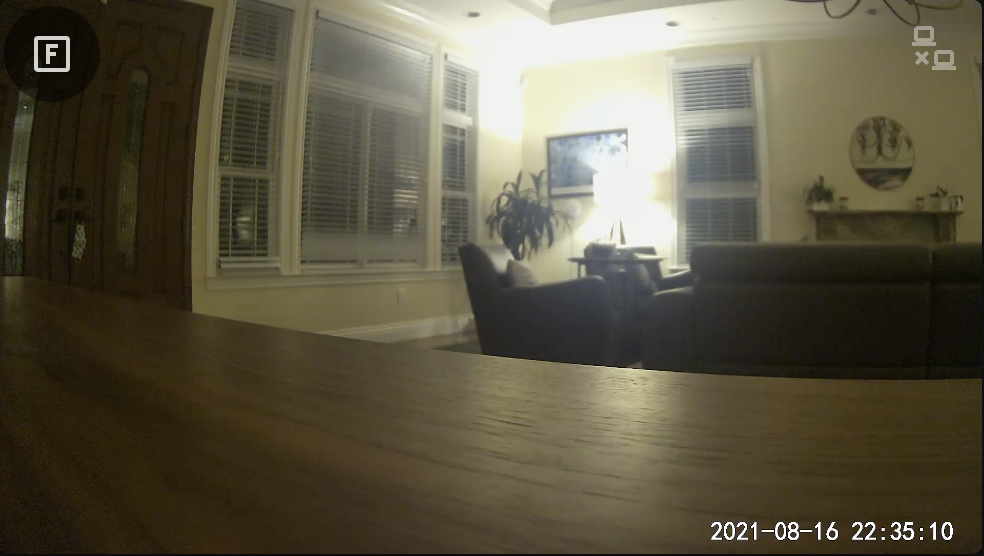 **Note**: AlexxIT's WebRTC Integration/Card must be installed and configured separately (see [details](https://github.com/AlexxIT/WebRTC)) before it can be used with this card.
#### Specifying The WebRTC Card Camera
The WebRTC Card live provider does **not** support use of Frigate-provided
camera entities, as it requires an RTSP stream which Frigate does not currently
provide. There are two ways to specify the WebRTC Card source camera:
* Manual setup of separate RTSP camera entities in Home Assistant ([see
example](https://www.home-assistant.io/integrations/generic/#live-stream)).
These entities will then be available for selection in the GUI card editor for
the camera, or can be manually specified with a `webrtc_card.entity` option under
that particular cameras configuration:
```yaml
cameras:
- webrtc_card:
entity: 'camera.front_door_rstp`
```
* OR manually entering the WebRTC Card camera URL parameter in the GUI card
editor, or configuring the `url` parameter as part of a manual Frigate card
configuration, as illustrated in the following example:
```yaml
cameras:
- webrtc_card:
url: 'rtsp://USERNAME:PASSWORD@CAMERA:554/RTSP_PATH'
```
Other WebRTC Card options may be specified under the `live` section, like so:
```yaml
live:
webrtc_card:
ui: true
```
See [the WebRTC Card live configuration](#webrtc-live-configuration) above, and the
[external WebRTC Card configuration
documentation](https://github.com/AlexxIT/WebRTC#configuration) for full
configuration options that can be used here.
## Frigate Card Conditions
Conditions are used to apply certain configuration depending on runtime evaluations. Conditions may be used in `elements` configuration (as part of a `custom:frigate-card-conditional` element) or the `overrides` configuration (see below for both).
All variables listed are under a `conditions:` section.
| Condition | Description |
| ------------- | --------------------------------------------- |
| `view` | A list of [views](#views) in which this condition is satified (e.g. `clips`) |
| `camera` | A list of camera ids in which this condition is satisfied. See [camera IDs](#camera-ids).|
| `fullscreen` | If `true` the condition is satisfied if the card is in fullscreen mode. If `false` the condition is satisfied if the card is **NOT** in fullscreen mode.|
| `state` | A list of state conditions to compare with Home Assistant state. See below. |
See the [PTZ example below](#frigate-card-conditional-example) for a real-world example of how these conditions can be used.
### State Conditions
```yaml
- conditions:
state:
- [entries]
```
The Frigate Card Condition can compare HA state against fixed string values. This is the same as the Home Assistant [Conditional Element](https://www.home-assistant.io/dashboards/picture-elements/#conditional-element) condition, but can be used outside of a Picture Element context (e.g. card configuration overrides).
If multiple entries are provided, the results are `AND`ed.
| Parameter | Description |
| - | - |
| `entity` | The entity ID to check the state for |
| `state` | Condition will be met if state is equal to this optional string. |
| `state_not` | Condition will be met if state is unequal to this optional string. |
See the [Menu override example below](#frigate-card-menu-override-example) for an illustration.
## Picture Elements / Menu Customizations
This card supports the [Picture Elements configuration
syntax](https://www.home-assistant.io/lovelace/picture-elements/) to seamlessly
allow the user to add custom elements to the card, which may be configured to
perform a variety of actions on interaction (see [actions](#actions) below). The configuration is fairly versatile and can be simple, or very complex depending on the desires of the user.
All configuration is under:
```yaml
elements:
```
See the [fully expanded elements configuration example](#config-expanded-elements) for how these parameters are structured.
**Note**: The Frigate Card allows either a single action (as in stock Home
Assistant) or list of actions to be defined for each class of user interaction
(e.g. `tap`, `double_tap`, `hold`, etc). See [an example of multiple actions](#example-multiple-actions).
### Special Elements
This card supports all [Picture
Elements](https://www.home-assistant.io/lovelace/picture-elements/#icon-element)
using compatible syntax. The card also supports a handful of custom special
elements to add special Frigate card functionality.
| Element name | Description |
| ------------- | --------------------------------------------- |
| `custom:frigate-card-menu-icon` | Add an arbitrary icon to the Frigate Card menu. Configuration is ~identical to that of the [Picture Elements Icon](https://www.home-assistant.io/lovelace/picture-elements/#icon-element) except with a type name of `custom:frigate-card-menu-icon`.|
| `custom:frigate-card-menu-state-icon` | Add a state icon to the Frigate Card menu that represents the state of a Home Assistant entity. Configuration is ~identical to that of the [Picture Elements State Icon](https://www.home-assistant.io/lovelace/picture-elements/#state-icon) except with a type name of `custom:frigate-card-menu-state-icon`.|
| `custom:frigate-card-menu-submenu` | Add a configurable submenu dropdown. See [configuration below](#frigate-card-menu-submenu).|
| `custom:frigate-card-menu-submenu-select` | Add a submenu based on a `select` or `input_select`. See [configuration below](#frigate-card-submenu-select).|
| `custom:frigate-card-conditional` | Restrict a set of elements to only render when the card is showing particular a particular [view](#views). See [configuration below](#frigate-card-conditional).|
**Note**: ℹ️ Manual positioning of custom menu icons or submenus via the `style`
parameter is not supported as the menu buttons displayed are context sensitive
so manual positioning by the user is not feasible.
#### `custom:frigate-card-menu-submenu`
Parameters for the `custom:frigate-card-menu-submenu` element are identical to the parameters of the [stock Home Assistant Icon Element](https://www.home-assistant.io/lovelace/picture-elements/#icon-element) with the exception of these parameters which differ:
| Parameter | Description |
| - | - |
| `type` | Must be `custom:frigate-card-menu-submenu`. |
| `items` | A list of menu items, as described below. |
##### Submenu Items
| Parameter | Default | Description |
| - | - | - |
| `title` | | An optional title to display. |
| `icon` | | An optional item icon to display, e.g. `mdi:car` |
| `entity` | | An optional Home Assistant entity from which title, icon and style can be automatically computed. |
| `state_color` | `true` | Whether or not the title and icon should be stylized based on state. |
| `selected` | `false` | Whether or not to show this item as selected. |
| `enabled` | `true` | Whether or not to show this item as enabled / selectable. |
| `style` | | Position and style the element using CSS. |
| `tap_action`, `double_tap_action`, `hold_action`, `start_tap`, `end_tap` | | [Home Assistant action configuration](https://www.home-assistant.io/lovelace/actions) including the extended functionality described under [actions](#actions). |
See the [Configuring a Submenu example](#configuring-a-submenu-example).
#### `custom:frigate-card-menu-submenu-select`
This element allows you to easily convert a [Home Assistant Select Entity](https://www.home-assistant.io/integrations/select/) or [Home Assistant Input Select Entity](https://www.home-assistant.io/integrations/input_select/) (an entity either starting with `select` or `input_select`) into an overridable submenu. This *could* be done by hand using a regular submenu (above) -- this element is a convenience.
Parameters for the `custom:frigate-card-menu-submenu-select` element are identical to the parameters of the [stock Home Assistant State Icon Element](https://www.home-assistant.io/dashboards/picture-elements/#state-icon) with the exception of these parameters which differ:
| Parameter | Description |
| - | - |
| `type` | Must be `custom:frigate-card-menu-submenu-select`. |
| `options` | An optional dictionary of overrides keyed by the option name that the given select entity supports. These options can be used to set or override submenu item parameters on a per-option basis. The format is as described in [Submenu Items](#frigate-card-submenu-items) above.|
See the [Configuring a Select Submenu example](#configuring-a-select-submenu-example).
#### `custom:frigate-card-conditional`
Parameters for the `custom:frigate-card-conditional` element:
| Parameter | Description |
| ------------- | --------------------------------------------- |
| `type` | Must be `custom:frigate-card-conditional`. |
`elements` | The elements to render. Can be any supported element, include additional condition or custom elements. |
| `conditions` | A set of conditions that must evaluate to true in order for the elements to be rendered. See [Frigate Card Conditions](#frigate-card-conditions). |
### Special Actions
#### `custom:frigate-card-action`
| Parameter | Description |
| - | - |
| `action` | Must be `custom:frigate-card-action`. |
| `frigate_card_action` | Call a Frigate Card action. Acceptable values are `default`, `clip`, `clips`, `image`, `live`, `snapshot`, `snapshots`, `download`, `timeline`, `frigate_ui`, `fullscreen`, `camera_select`, `menu_toggle`, `media_player`.|
##### Command descriptions
| Value | Description |
| - | - |
| `default` | Trigger the default view. |
| `clip`, `clips`, `image`, `live`, `snapshot`, `snapshots` | Trigger the named [view](#views).|
|`download`|Download the displayed media.|
|`frigate_ui`|Open the Frigate UI at the configured URL.|
|`fullscreen`|Toggle fullscreen.|
|`camera_select`|Select a given camera. Takes a single additional `camera` parameter with the [camera ID](#camera-ids) of the camera to select. Respects the value of `view.camera_select` to choose the appropriate view on the new camera.|
|`menu_toggle` | Show/hide the menu (for the `hidden` mode style). |
|`media_player`| Perform a media player action. Takes a `media_player` parameter with the entity ID of the media_player on which to perform the action, and a `media_player_action` parameter which should be either `play` or `stop` to play or stop the media in question. |
## Views
This card supports several different views:
| Key | Description |
| ------------- | --------------------------------------------- |
|`live` (default)| Shows the live camera view with the configured live provider.|
|`snapshots`|Shows an event gallery of snapshots for this camera/zone/label.|
|`snapshot`|Shows a Media viewer for the most recent snapshot for this camera/zone/label. Can also be accessed by holding down the `snapshots` menu icon.|
|`clips`|Shows an event gallery of clips for this camera/zone/label.|
|`clip`|Shows a Media viewer for the most recent clip for this camera/zone/label. Can also be accessed by holding down the `clips` menu icon.|
|`image`|Shows a static image specified by the `image` parameter, can be used as a discrete default view or a screensaver (via `view.timeout_seconds`).|
### Navigating From A Snapshot To A Clip
Clicking on a snapshot will take the user to a clip that was taken at the ~same
time as the snapshot (if any).
## Actions
### Introduction to Actions
Actions are pre-configured activities that can be triggered in response to a
variety of circumstances (e.g. tapping on a menu icon, double tapping on a
[picture element](#frigate-card-elements) or holding the mouse/tap down on a
particular [view](#views)).
### Configuring Actions
The format for actions is the standard Home Assistant [action
format](https://www.home-assistant.io/lovelace/actions/#tap-action), with the
exception of differences called out below.
### Differences in actions between Frigate Card and Home Assistant
Both the Home Assistant frontend and the Frigate card cooperate to provide
action functionality. In general, the Frigate Card functionality is a superset
of that offered by stock Home Assistant.
Stock action functionality is used for Stock [Home Assistant picture
elements](https://www.home-assistant.io/lovelace/picture-elements/). Extended
Frigate card behavior covers all other interactions on the Frigate card (e.g.
menu icon elements, submenus and actions on the card or views).
#### Custom action types: `start_tap` and `end_tap`
The card has partial support for two special action types `start_tap` and
`end_tap` which occur when a tap is started (e.g. mouse is pressed down /
touch begins), and ended (e.g. mouse released / touch ends) respectively. This
might be useful for PTZ cameras cameras to start/stop movement on touch. Network
latency may introduce unavoidable imprecision between `end_tap` and action
actually occurring.
#### Multiple actions
Extended Frigate card behavior supports a list of actions which will be handled,
in addition to using a singular action. See [an example of multiple
actions](#example-multiple-actions) below.
### Card & View Actions
Actions may be attached to the card itself, to trigger action when the card
experiences a `tap`, `double_tap`, `hold`, `start_tap` or `end_tap` event. These
actions can be specified both for the overall card and for individual groups of
view.
| Configuration path | Views to which it refers |
| - | - |
| `view.actions` | All (may be overriden by the below) |
| `media_viewer.actions` | `clip`, `snapshot` |
| `event_gallery.actions` | `clips`, `snapshots` |
| `live.actions` | `live` |
| `image.actions` | `image` |
If an action is configured for both the whole card (`view.actions`) and a more
specific view (e.g. `live.actions`) then the actions are merged, with the more
specific overriding the less specific (see example below).
**Note:** The card itself relies on user interactions to function (e.g. `tap` on
the menu should activate that button, `tap` on a gallery thumbnail should open
that piece of media, etc). Efforts are taken to de-duplicate interactions (e.g.
card-wide actions will not be activated through interaction with menu buttons,
next/previous controls, thumbnails, etc), but in some cases this is not possible
(e.g. embedded WebRTC card controls) -- in these cases duplicate actions may
occur with certain configurations (e.g. `tap`).
## Menu Styles
This card supports several menu styles.
| Key | Description | Screenshot |
| ------------- | --------------------------------------------- | - |
|`hidden`| Hide the menu by default, expandable upon clicking the Frigate button. |
**Note**: AlexxIT's WebRTC Integration/Card must be installed and configured separately (see [details](https://github.com/AlexxIT/WebRTC)) before it can be used with this card.
#### Specifying The WebRTC Card Camera
The WebRTC Card live provider does **not** support use of Frigate-provided
camera entities, as it requires an RTSP stream which Frigate does not currently
provide. There are two ways to specify the WebRTC Card source camera:
* Manual setup of separate RTSP camera entities in Home Assistant ([see
example](https://www.home-assistant.io/integrations/generic/#live-stream)).
These entities will then be available for selection in the GUI card editor for
the camera, or can be manually specified with a `webrtc_card.entity` option under
that particular cameras configuration:
```yaml
cameras:
- webrtc_card:
entity: 'camera.front_door_rstp`
```
* OR manually entering the WebRTC Card camera URL parameter in the GUI card
editor, or configuring the `url` parameter as part of a manual Frigate card
configuration, as illustrated in the following example:
```yaml
cameras:
- webrtc_card:
url: 'rtsp://USERNAME:PASSWORD@CAMERA:554/RTSP_PATH'
```
Other WebRTC Card options may be specified under the `live` section, like so:
```yaml
live:
webrtc_card:
ui: true
```
See [the WebRTC Card live configuration](#webrtc-live-configuration) above, and the
[external WebRTC Card configuration
documentation](https://github.com/AlexxIT/WebRTC#configuration) for full
configuration options that can be used here.
## Frigate Card Conditions
Conditions are used to apply certain configuration depending on runtime evaluations. Conditions may be used in `elements` configuration (as part of a `custom:frigate-card-conditional` element) or the `overrides` configuration (see below for both).
All variables listed are under a `conditions:` section.
| Condition | Description |
| ------------- | --------------------------------------------- |
| `view` | A list of [views](#views) in which this condition is satified (e.g. `clips`) |
| `camera` | A list of camera ids in which this condition is satisfied. See [camera IDs](#camera-ids).|
| `fullscreen` | If `true` the condition is satisfied if the card is in fullscreen mode. If `false` the condition is satisfied if the card is **NOT** in fullscreen mode.|
| `state` | A list of state conditions to compare with Home Assistant state. See below. |
See the [PTZ example below](#frigate-card-conditional-example) for a real-world example of how these conditions can be used.
### State Conditions
```yaml
- conditions:
state:
- [entries]
```
The Frigate Card Condition can compare HA state against fixed string values. This is the same as the Home Assistant [Conditional Element](https://www.home-assistant.io/dashboards/picture-elements/#conditional-element) condition, but can be used outside of a Picture Element context (e.g. card configuration overrides).
If multiple entries are provided, the results are `AND`ed.
| Parameter | Description |
| - | - |
| `entity` | The entity ID to check the state for |
| `state` | Condition will be met if state is equal to this optional string. |
| `state_not` | Condition will be met if state is unequal to this optional string. |
See the [Menu override example below](#frigate-card-menu-override-example) for an illustration.
## Picture Elements / Menu Customizations
This card supports the [Picture Elements configuration
syntax](https://www.home-assistant.io/lovelace/picture-elements/) to seamlessly
allow the user to add custom elements to the card, which may be configured to
perform a variety of actions on interaction (see [actions](#actions) below). The configuration is fairly versatile and can be simple, or very complex depending on the desires of the user.
All configuration is under:
```yaml
elements:
```
See the [fully expanded elements configuration example](#config-expanded-elements) for how these parameters are structured.
**Note**: The Frigate Card allows either a single action (as in stock Home
Assistant) or list of actions to be defined for each class of user interaction
(e.g. `tap`, `double_tap`, `hold`, etc). See [an example of multiple actions](#example-multiple-actions).
### Special Elements
This card supports all [Picture
Elements](https://www.home-assistant.io/lovelace/picture-elements/#icon-element)
using compatible syntax. The card also supports a handful of custom special
elements to add special Frigate card functionality.
| Element name | Description |
| ------------- | --------------------------------------------- |
| `custom:frigate-card-menu-icon` | Add an arbitrary icon to the Frigate Card menu. Configuration is ~identical to that of the [Picture Elements Icon](https://www.home-assistant.io/lovelace/picture-elements/#icon-element) except with a type name of `custom:frigate-card-menu-icon`.|
| `custom:frigate-card-menu-state-icon` | Add a state icon to the Frigate Card menu that represents the state of a Home Assistant entity. Configuration is ~identical to that of the [Picture Elements State Icon](https://www.home-assistant.io/lovelace/picture-elements/#state-icon) except with a type name of `custom:frigate-card-menu-state-icon`.|
| `custom:frigate-card-menu-submenu` | Add a configurable submenu dropdown. See [configuration below](#frigate-card-menu-submenu).|
| `custom:frigate-card-menu-submenu-select` | Add a submenu based on a `select` or `input_select`. See [configuration below](#frigate-card-submenu-select).|
| `custom:frigate-card-conditional` | Restrict a set of elements to only render when the card is showing particular a particular [view](#views). See [configuration below](#frigate-card-conditional).|
**Note**: ℹ️ Manual positioning of custom menu icons or submenus via the `style`
parameter is not supported as the menu buttons displayed are context sensitive
so manual positioning by the user is not feasible.
#### `custom:frigate-card-menu-submenu`
Parameters for the `custom:frigate-card-menu-submenu` element are identical to the parameters of the [stock Home Assistant Icon Element](https://www.home-assistant.io/lovelace/picture-elements/#icon-element) with the exception of these parameters which differ:
| Parameter | Description |
| - | - |
| `type` | Must be `custom:frigate-card-menu-submenu`. |
| `items` | A list of menu items, as described below. |
##### Submenu Items
| Parameter | Default | Description |
| - | - | - |
| `title` | | An optional title to display. |
| `icon` | | An optional item icon to display, e.g. `mdi:car` |
| `entity` | | An optional Home Assistant entity from which title, icon and style can be automatically computed. |
| `state_color` | `true` | Whether or not the title and icon should be stylized based on state. |
| `selected` | `false` | Whether or not to show this item as selected. |
| `enabled` | `true` | Whether or not to show this item as enabled / selectable. |
| `style` | | Position and style the element using CSS. |
| `tap_action`, `double_tap_action`, `hold_action`, `start_tap`, `end_tap` | | [Home Assistant action configuration](https://www.home-assistant.io/lovelace/actions) including the extended functionality described under [actions](#actions). |
See the [Configuring a Submenu example](#configuring-a-submenu-example).
#### `custom:frigate-card-menu-submenu-select`
This element allows you to easily convert a [Home Assistant Select Entity](https://www.home-assistant.io/integrations/select/) or [Home Assistant Input Select Entity](https://www.home-assistant.io/integrations/input_select/) (an entity either starting with `select` or `input_select`) into an overridable submenu. This *could* be done by hand using a regular submenu (above) -- this element is a convenience.
Parameters for the `custom:frigate-card-menu-submenu-select` element are identical to the parameters of the [stock Home Assistant State Icon Element](https://www.home-assistant.io/dashboards/picture-elements/#state-icon) with the exception of these parameters which differ:
| Parameter | Description |
| - | - |
| `type` | Must be `custom:frigate-card-menu-submenu-select`. |
| `options` | An optional dictionary of overrides keyed by the option name that the given select entity supports. These options can be used to set or override submenu item parameters on a per-option basis. The format is as described in [Submenu Items](#frigate-card-submenu-items) above.|
See the [Configuring a Select Submenu example](#configuring-a-select-submenu-example).
#### `custom:frigate-card-conditional`
Parameters for the `custom:frigate-card-conditional` element:
| Parameter | Description |
| ------------- | --------------------------------------------- |
| `type` | Must be `custom:frigate-card-conditional`. |
`elements` | The elements to render. Can be any supported element, include additional condition or custom elements. |
| `conditions` | A set of conditions that must evaluate to true in order for the elements to be rendered. See [Frigate Card Conditions](#frigate-card-conditions). |
### Special Actions
#### `custom:frigate-card-action`
| Parameter | Description |
| - | - |
| `action` | Must be `custom:frigate-card-action`. |
| `frigate_card_action` | Call a Frigate Card action. Acceptable values are `default`, `clip`, `clips`, `image`, `live`, `snapshot`, `snapshots`, `download`, `timeline`, `frigate_ui`, `fullscreen`, `camera_select`, `menu_toggle`, `media_player`.|
##### Command descriptions
| Value | Description |
| - | - |
| `default` | Trigger the default view. |
| `clip`, `clips`, `image`, `live`, `snapshot`, `snapshots` | Trigger the named [view](#views).|
|`download`|Download the displayed media.|
|`frigate_ui`|Open the Frigate UI at the configured URL.|
|`fullscreen`|Toggle fullscreen.|
|`camera_select`|Select a given camera. Takes a single additional `camera` parameter with the [camera ID](#camera-ids) of the camera to select. Respects the value of `view.camera_select` to choose the appropriate view on the new camera.|
|`menu_toggle` | Show/hide the menu (for the `hidden` mode style). |
|`media_player`| Perform a media player action. Takes a `media_player` parameter with the entity ID of the media_player on which to perform the action, and a `media_player_action` parameter which should be either `play` or `stop` to play or stop the media in question. |
## Views
This card supports several different views:
| Key | Description |
| ------------- | --------------------------------------------- |
|`live` (default)| Shows the live camera view with the configured live provider.|
|`snapshots`|Shows an event gallery of snapshots for this camera/zone/label.|
|`snapshot`|Shows a Media viewer for the most recent snapshot for this camera/zone/label. Can also be accessed by holding down the `snapshots` menu icon.|
|`clips`|Shows an event gallery of clips for this camera/zone/label.|
|`clip`|Shows a Media viewer for the most recent clip for this camera/zone/label. Can also be accessed by holding down the `clips` menu icon.|
|`image`|Shows a static image specified by the `image` parameter, can be used as a discrete default view or a screensaver (via `view.timeout_seconds`).|
### Navigating From A Snapshot To A Clip
Clicking on a snapshot will take the user to a clip that was taken at the ~same
time as the snapshot (if any).
## Actions
### Introduction to Actions
Actions are pre-configured activities that can be triggered in response to a
variety of circumstances (e.g. tapping on a menu icon, double tapping on a
[picture element](#frigate-card-elements) or holding the mouse/tap down on a
particular [view](#views)).
### Configuring Actions
The format for actions is the standard Home Assistant [action
format](https://www.home-assistant.io/lovelace/actions/#tap-action), with the
exception of differences called out below.
### Differences in actions between Frigate Card and Home Assistant
Both the Home Assistant frontend and the Frigate card cooperate to provide
action functionality. In general, the Frigate Card functionality is a superset
of that offered by stock Home Assistant.
Stock action functionality is used for Stock [Home Assistant picture
elements](https://www.home-assistant.io/lovelace/picture-elements/). Extended
Frigate card behavior covers all other interactions on the Frigate card (e.g.
menu icon elements, submenus and actions on the card or views).
#### Custom action types: `start_tap` and `end_tap`
The card has partial support for two special action types `start_tap` and
`end_tap` which occur when a tap is started (e.g. mouse is pressed down /
touch begins), and ended (e.g. mouse released / touch ends) respectively. This
might be useful for PTZ cameras cameras to start/stop movement on touch. Network
latency may introduce unavoidable imprecision between `end_tap` and action
actually occurring.
#### Multiple actions
Extended Frigate card behavior supports a list of actions which will be handled,
in addition to using a singular action. See [an example of multiple
actions](#example-multiple-actions) below.
### Card & View Actions
Actions may be attached to the card itself, to trigger action when the card
experiences a `tap`, `double_tap`, `hold`, `start_tap` or `end_tap` event. These
actions can be specified both for the overall card and for individual groups of
view.
| Configuration path | Views to which it refers |
| - | - |
| `view.actions` | All (may be overriden by the below) |
| `media_viewer.actions` | `clip`, `snapshot` |
| `event_gallery.actions` | `clips`, `snapshots` |
| `live.actions` | `live` |
| `image.actions` | `image` |
If an action is configured for both the whole card (`view.actions`) and a more
specific view (e.g. `live.actions`) then the actions are merged, with the more
specific overriding the less specific (see example below).
**Note:** The card itself relies on user interactions to function (e.g. `tap` on
the menu should activate that button, `tap` on a gallery thumbnail should open
that piece of media, etc). Efforts are taken to de-duplicate interactions (e.g.
card-wide actions will not be activated through interaction with menu buttons,
next/previous controls, thumbnails, etc), but in some cases this is not possible
(e.g. embedded WebRTC card controls) -- in these cases duplicate actions may
occur with certain configurations (e.g. `tap`).
## Menu Styles
This card supports several menu styles.
| Key | Description | Screenshot |
| ------------- | --------------------------------------------- | - |
|`hidden`| Hide the menu by default, expandable upon clicking the Frigate button. | 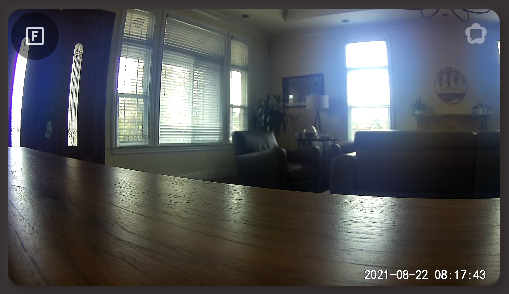 |
|`overlay`| Overlay the menu over the card contents. The Frigate button shows the default view. |
|
|`overlay`| Overlay the menu over the card contents. The Frigate button shows the default view. | 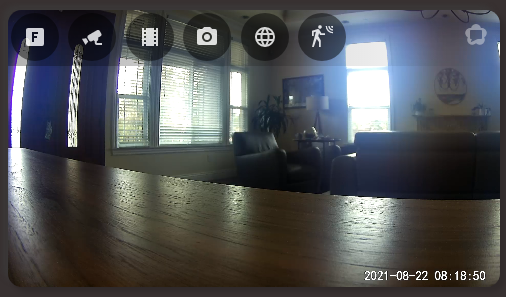 |
|`hover`| Overlay the menu over the card contents when the mouse is over the menu, otherwise it is not shown. The Frigate button shows the default view. | |
|`outside`| Render the menu outside the card (i.e. above it if `position` is `top`, or below it if `position` is `bottom`). The Frigate button shows the default view. |
|
|`hover`| Overlay the menu over the card contents when the mouse is over the menu, otherwise it is not shown. The Frigate button shows the default view. | |
|`outside`| Render the menu outside the card (i.e. above it if `position` is `top`, or below it if `position` is `bottom`). The Frigate button shows the default view. | 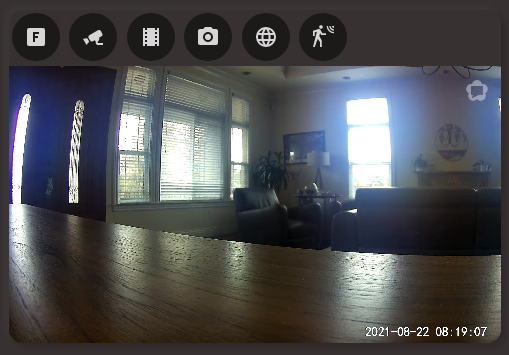 |
|`none`| No menu is shown. |
|
|`none`| No menu is shown. |  |
## Screenshots
### Live Viewing of Multiple Cameras
Scroll through your live cameras, or choose from a menu. Seamlessly supports
cameras of different dimensions, and custom submenus per camera.
|
## Screenshots
### Live Viewing of Multiple Cameras
Scroll through your live cameras, or choose from a menu. Seamlessly supports
cameras of different dimensions, and custom submenus per camera.
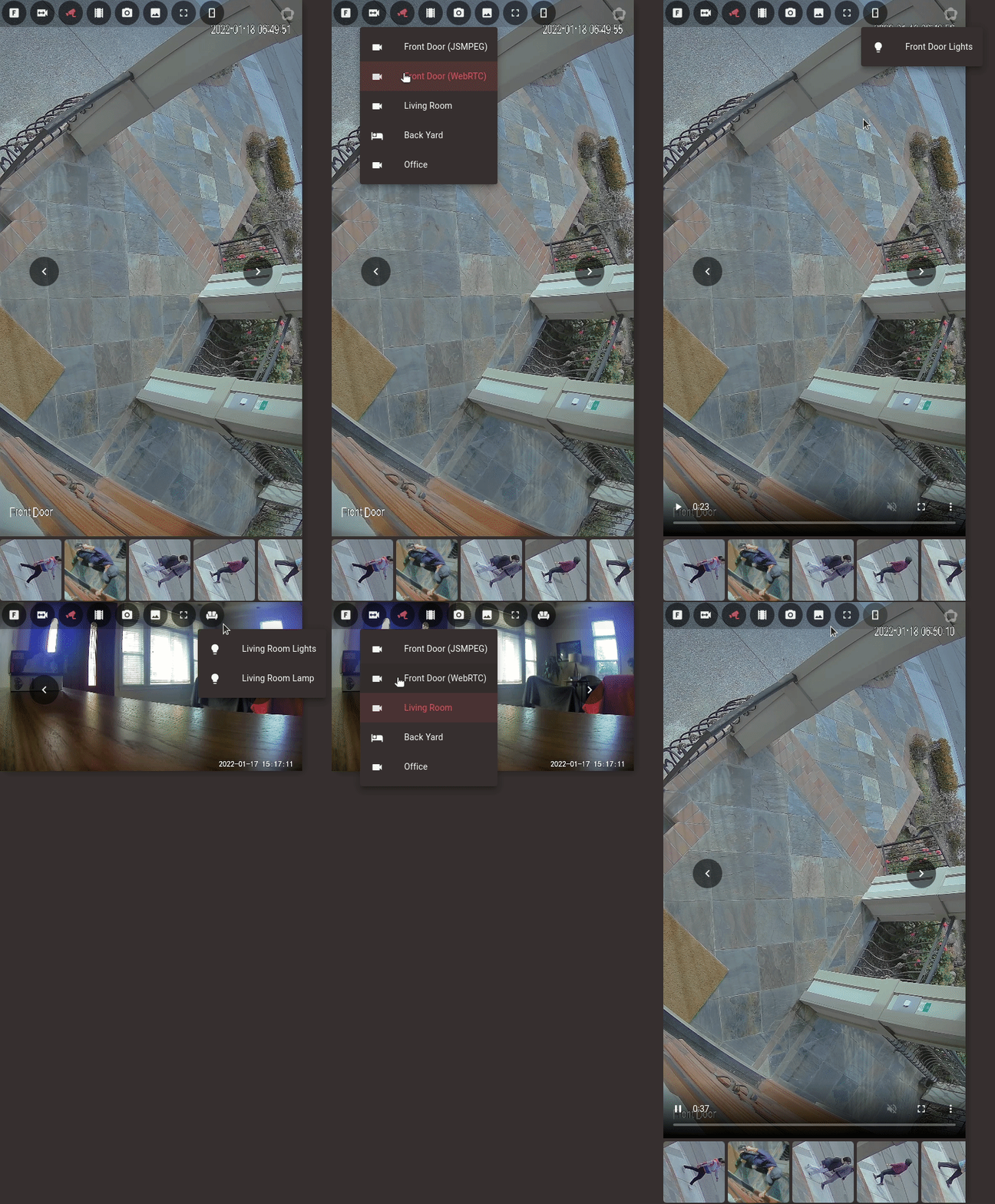 ### Full Viewing Of Events
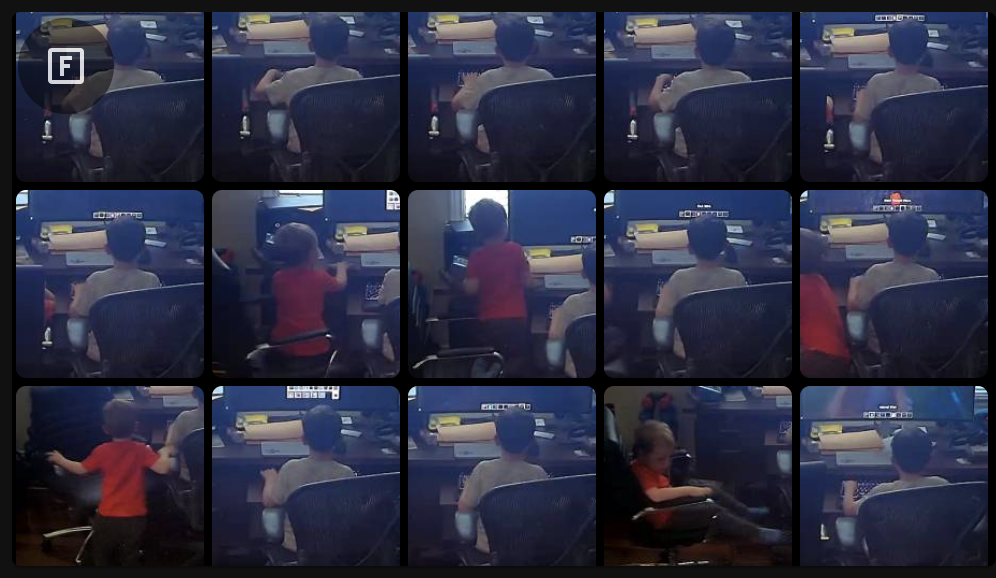 ### Live Viewing With Thumbnail Carousel
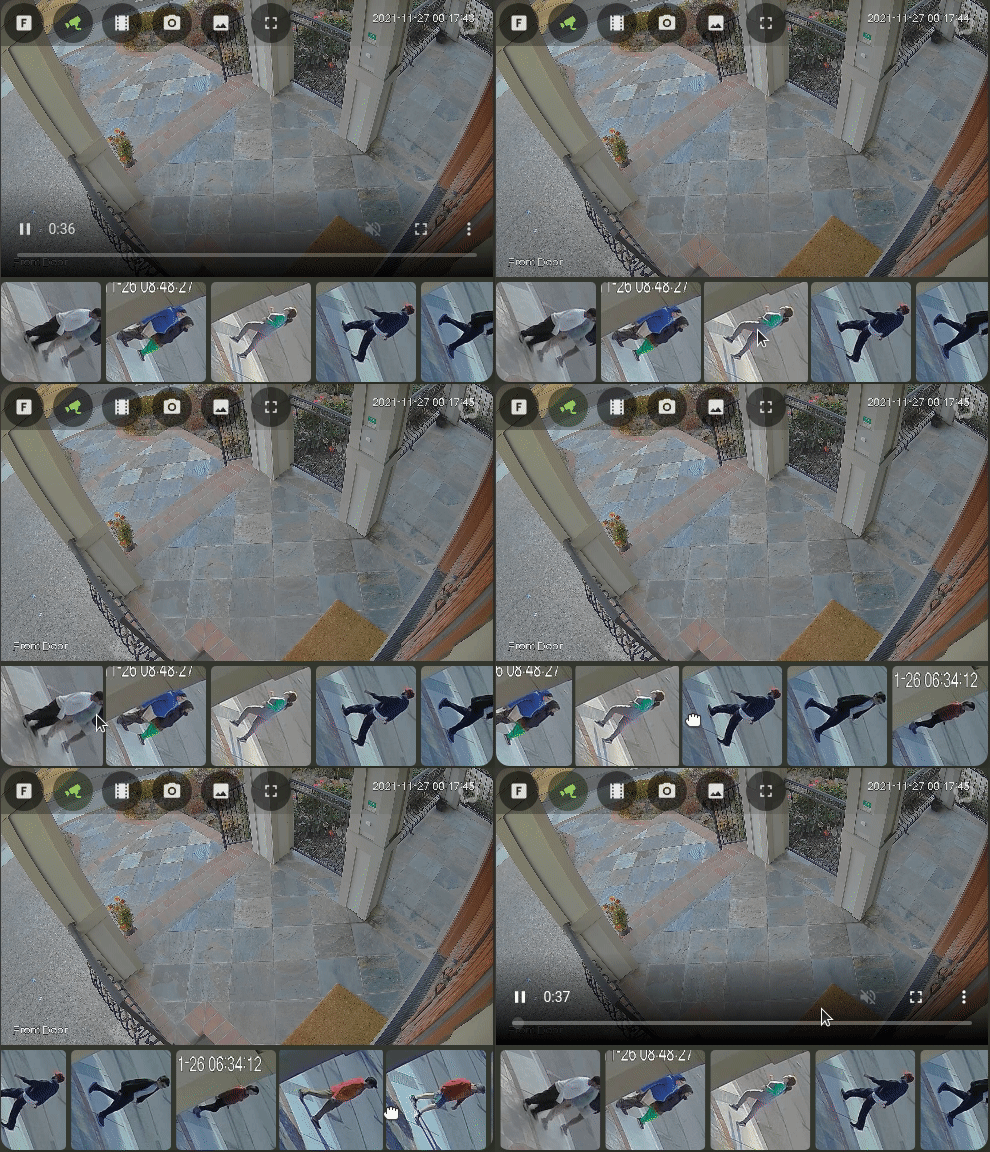 ### Clip Viewing With Thumbnail Carousel
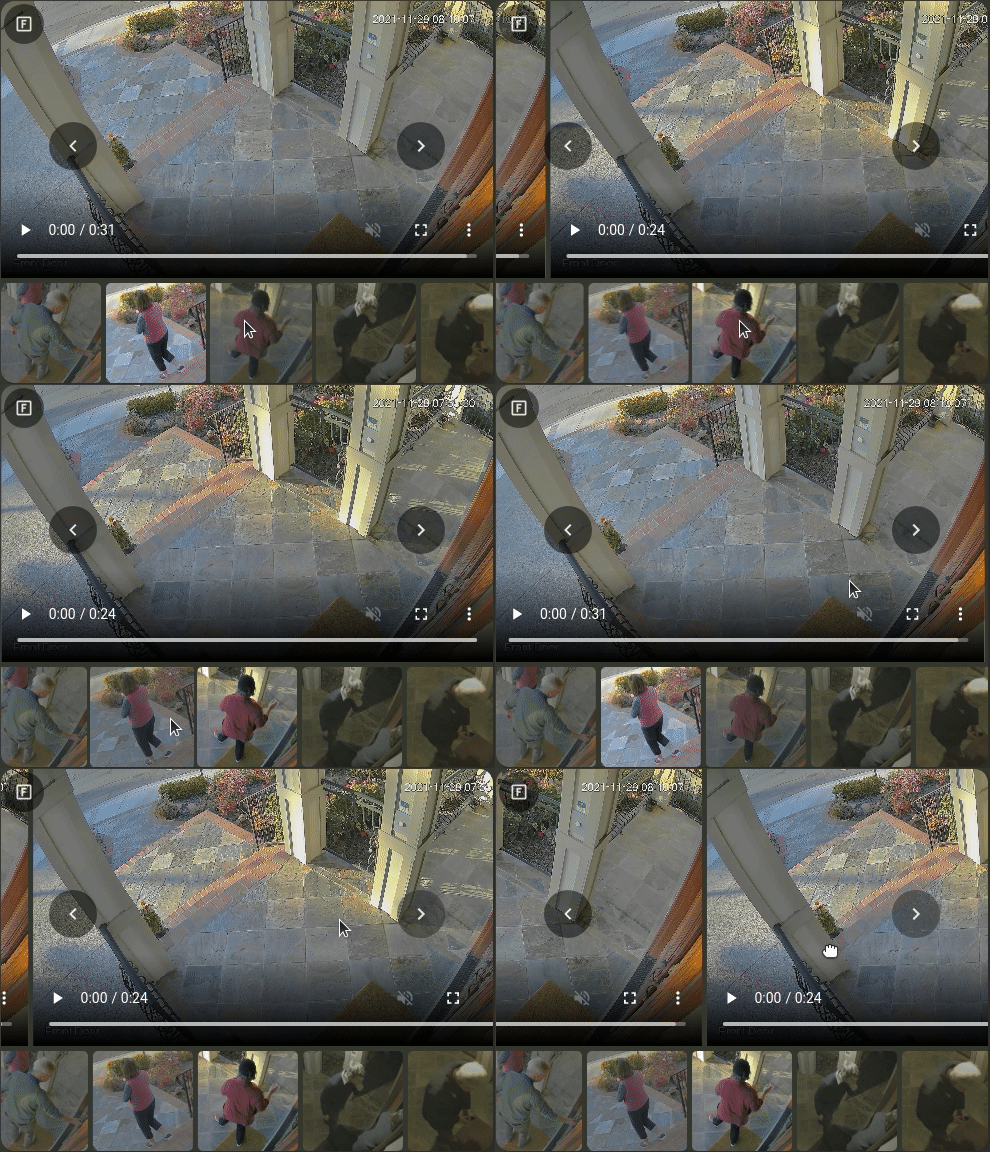 ### Hover Menu / Thumbnail Next & Previous Controls
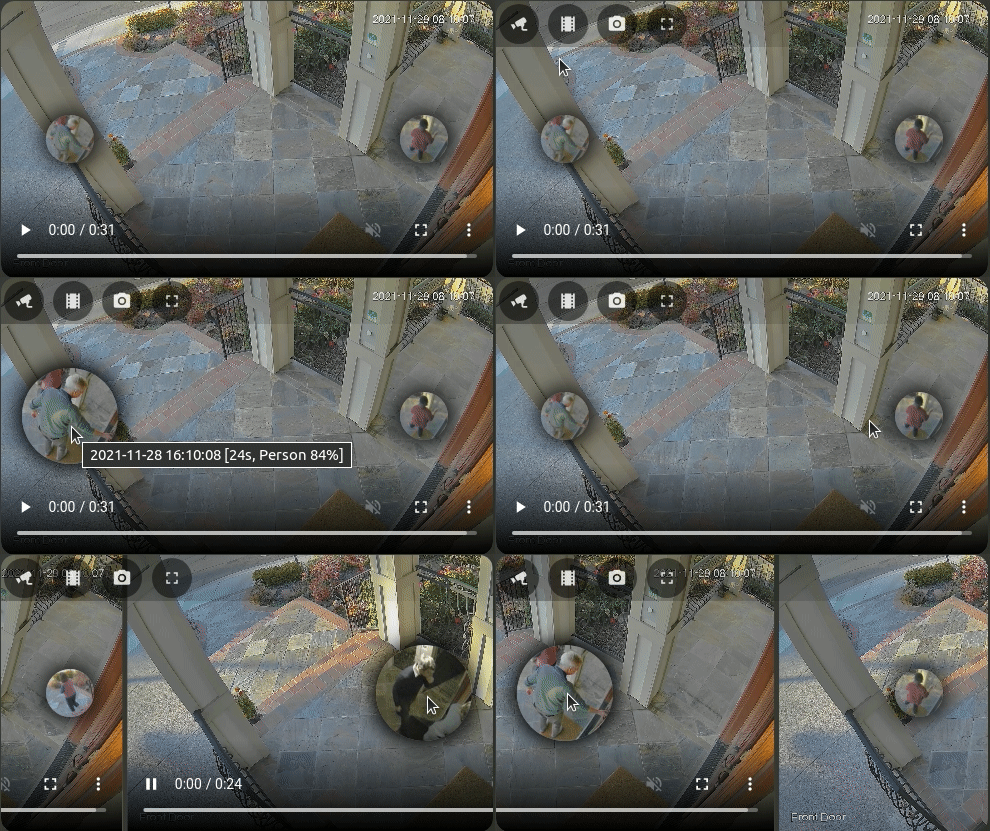 ### Card Editing
This card supports full editing via the Lovelace card editor. Additional arbitrary configuration for WebRTC Card may be specified in YAML mode.
### Card Editing
This card supports full editing via the Lovelace card editor. Additional arbitrary configuration for WebRTC Card may be specified in YAML mode.
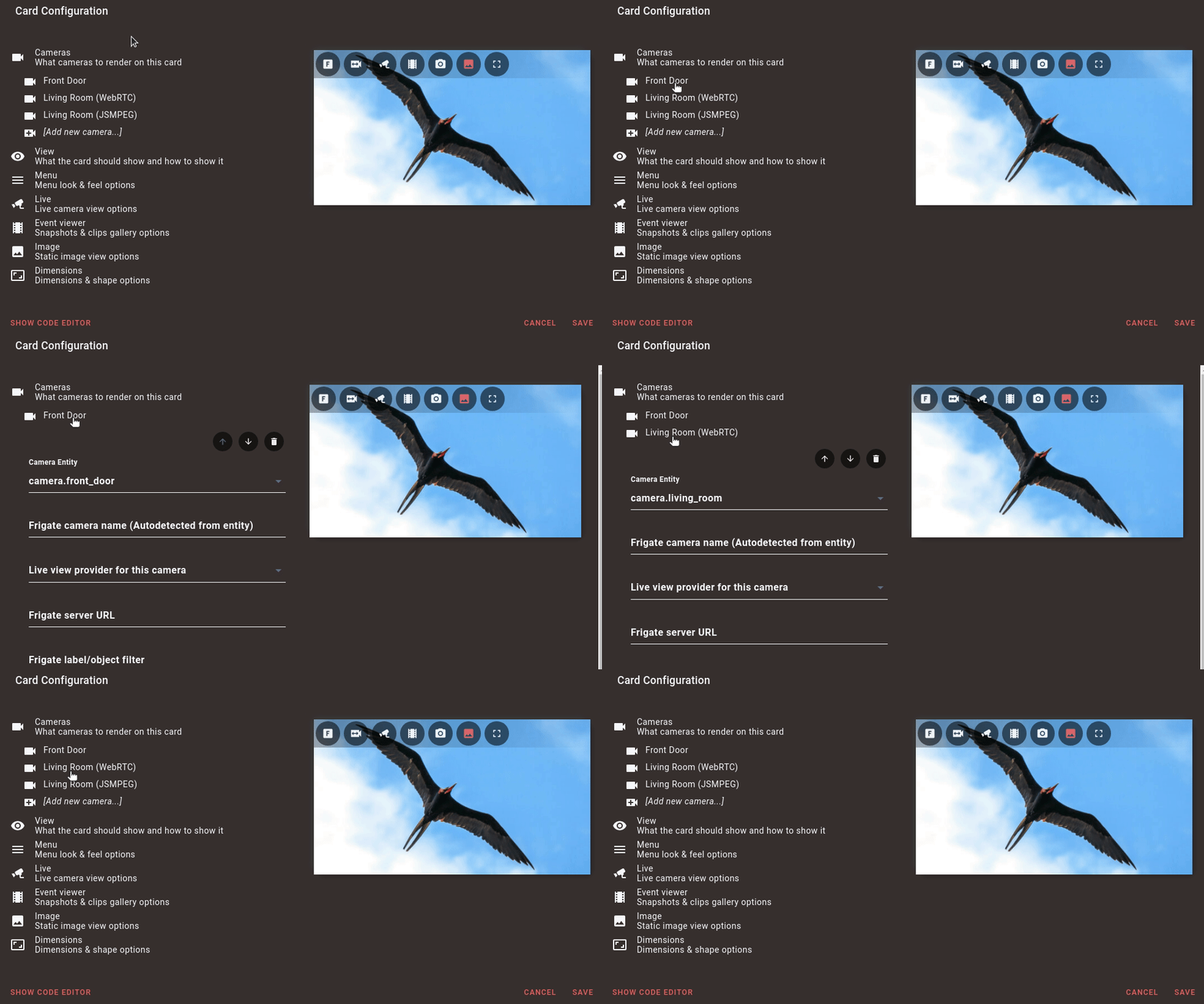 ### Configurable Submenus
This card supports fully configurable submenus.
### Configurable Submenus
This card supports fully configurable submenus.
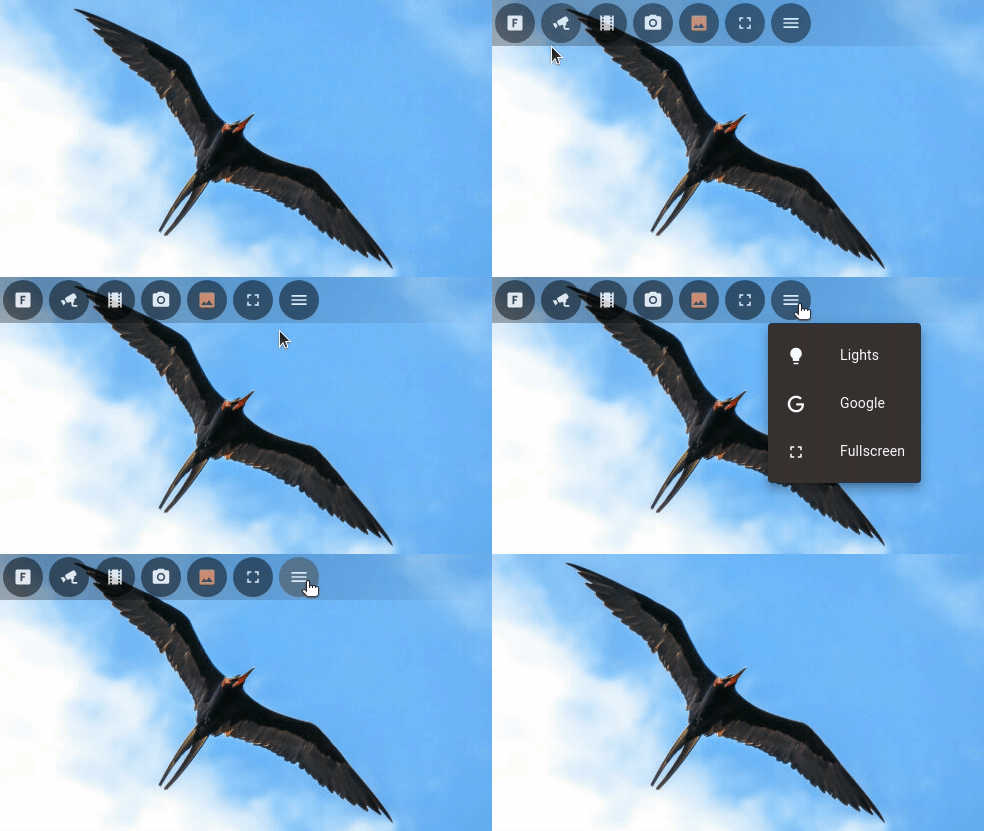 ### Select Entity Submenus
Automatically generate submenus from `select` entities.
### Select Entity Submenus
Automatically generate submenus from `select` entities.
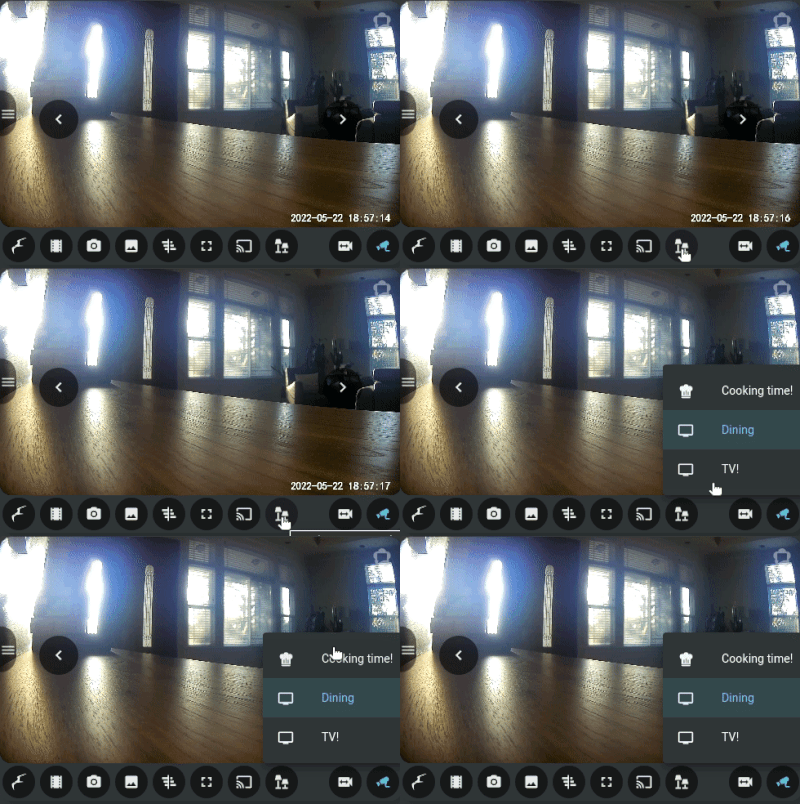 ### Cast media from the card
Cast media from the card to a local player.
### Cast media from the card
Cast media from the card to a local player.
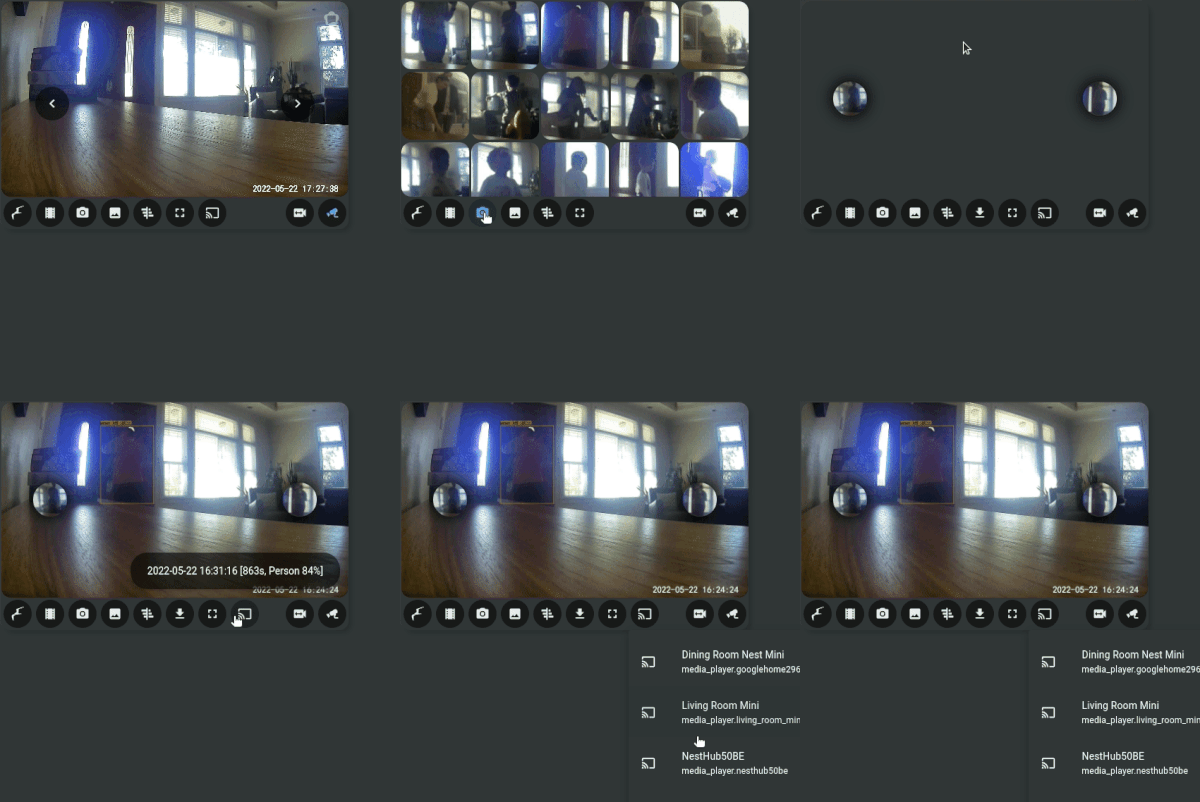 ### Scan Mode
Automatically choose the camera with the action!
### Scan Mode
Automatically choose the camera with the action!
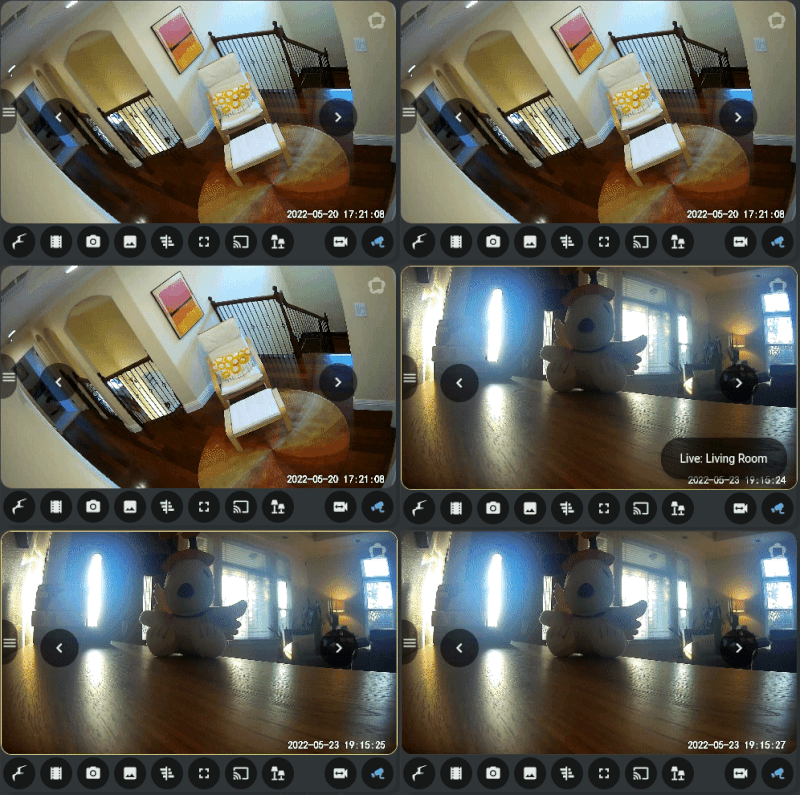 ### Thumbnail Drawers
View thumbnails in side-drawers.
### Thumbnail Drawers
View thumbnails in side-drawers.
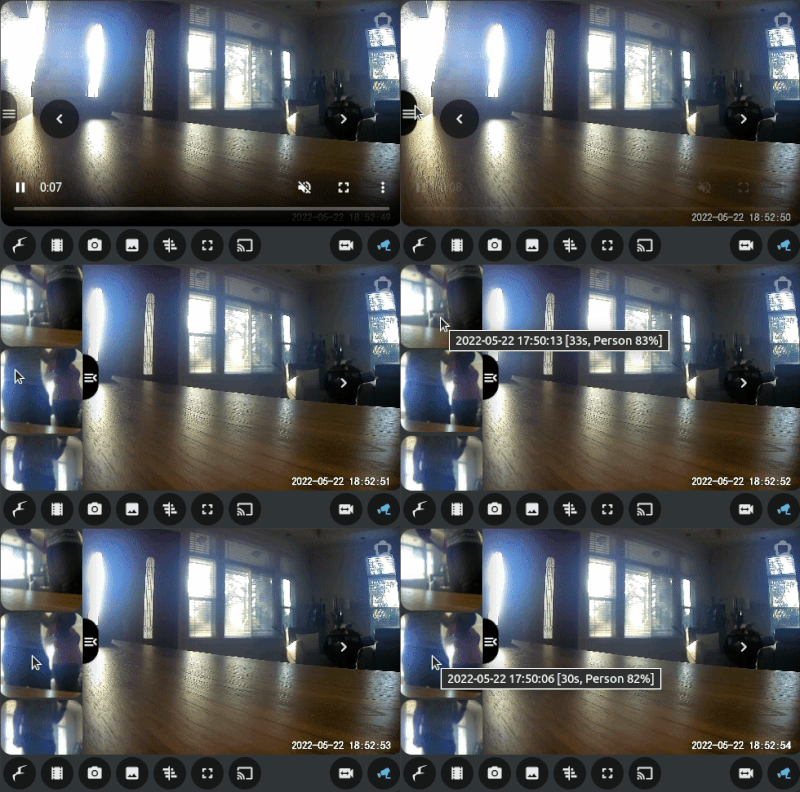 ### Event Timeline
View events in the timeline.
### Event Timeline
View events in the timeline.
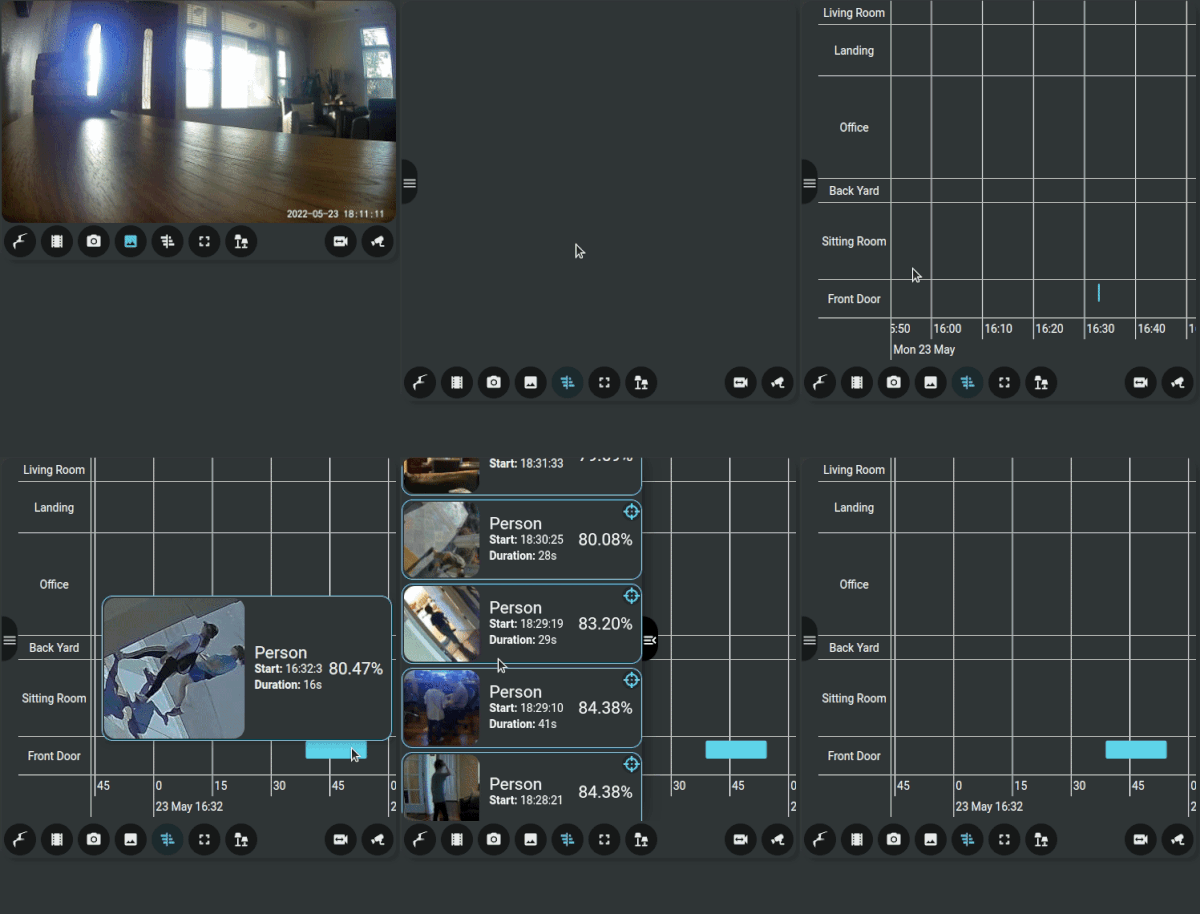 ### Single Camera Recordings
View recordings for a camera across time:
### Single Camera Recordings
View recordings for a camera across time:
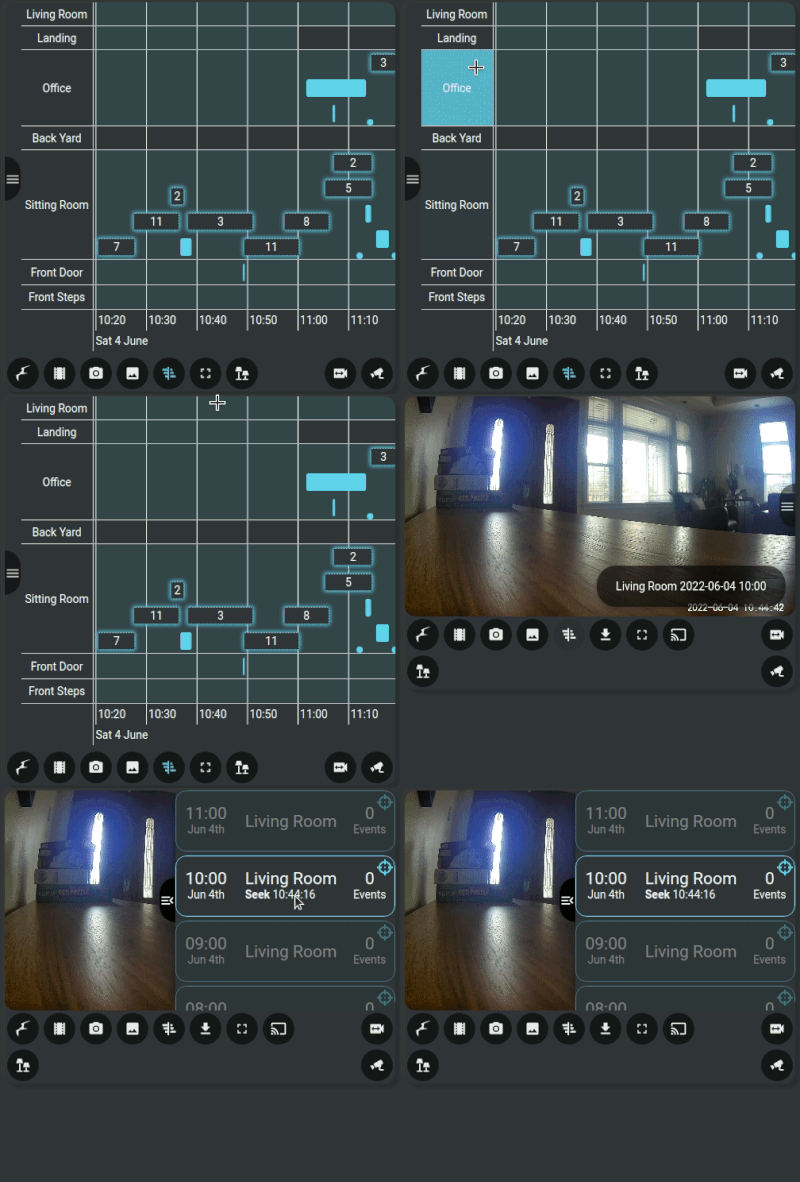 ### Multiple Camera Recordings
View recordings for multiple cameras at a given time:
### Multiple Camera Recordings
View recordings for multiple cameras at a given time:
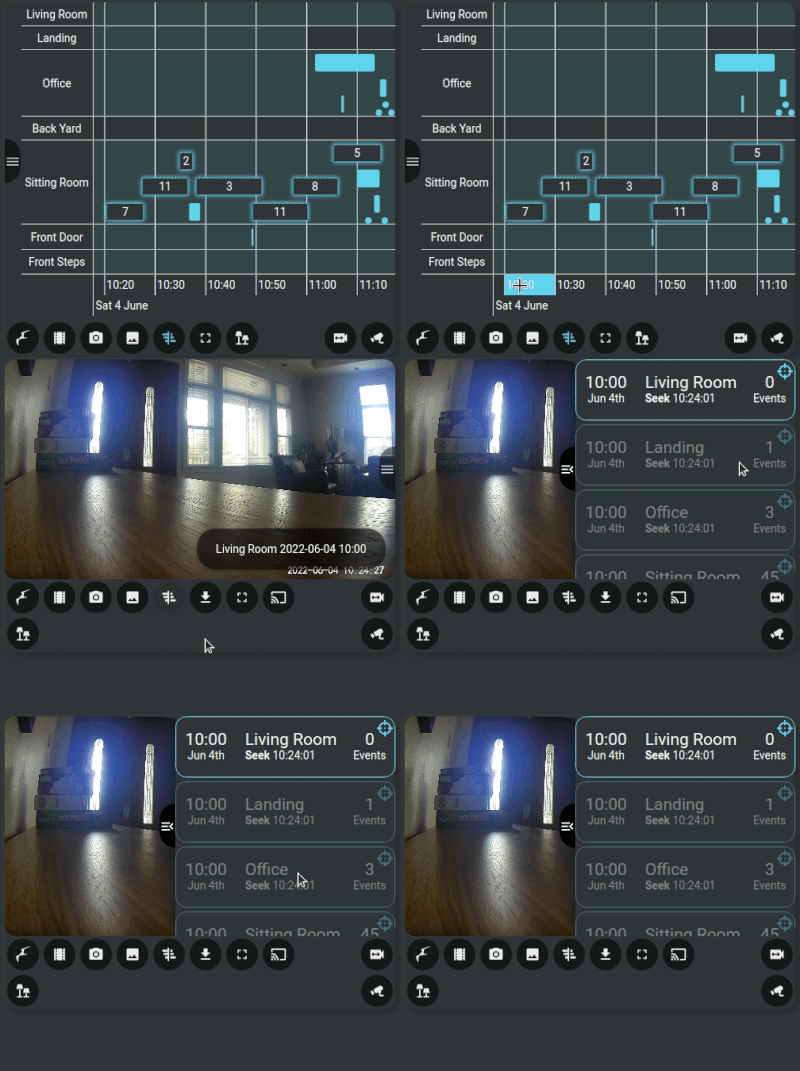 ### Dark Mode
Dim the card when not used.
### Dark Mode
Dim the card when not used.
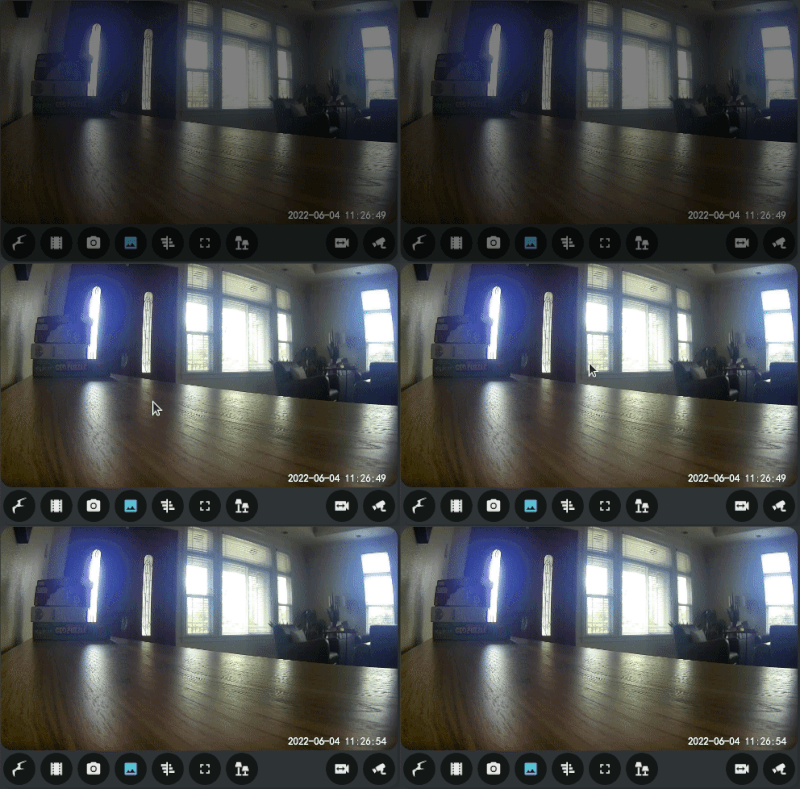 ### Card Casting
A dashboard with the card can be cast onto a suitable device (such as the Nest Hub shown below).
### Card Casting
A dashboard with the card can be cast onto a suitable device (such as the Nest Hub shown below).
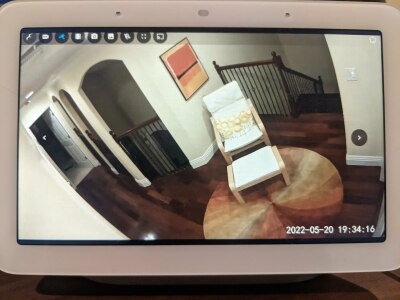 ## Examples
### Illustrative Expanded Configuration Reference
**Caution**: 🚩 Just copying this full reference into your configuration will cause you a significant maintenance burden. Don't do it! Please only specify what you need as defaults can / do change continually as this card develops. Almost all the values shown here are the defaults (except in cases where is no default, parameters are added here for illustrative purposes).
## Examples
### Illustrative Expanded Configuration Reference
**Caution**: 🚩 Just copying this full reference into your configuration will cause you a significant maintenance burden. Don't do it! Please only specify what you need as defaults can / do change continually as this card develops. Almost all the values shown here are the defaults (except in cases where is no default, parameters are added here for illustrative purposes).
Expand: Cameras section
Reference: [Camera Options](#camera-options).
```yaml
cameras:
- camera_entity: camera.front_Door
live_provider: ha
frigate:
url: http://my.frigate.local
client_id: frigate
camera_name: front_door
label: person
zone: steps
# Show events for camera-2 when this camera is viewed.
dependencies:
all_cameras: false
cameras:
- camera-2
triggers:
motion: false
occupancy: true
entities:
- binary_sensor.front_door_sensor
- camera_entity: camera.entrance
live_provider: webrtc-card
frigate:
url: http://my-other.frigate.local
client_id: frigate-other
camera_name: entrance
label: car
zone: driveway
icon: 'mdi:car'
title: 'Front entrance'
# Custom identifier for the camera to refer to it above.
id: 'camera-2'
webrtc_card:
entity: camera.entrance_rtsp
url: 'rtsp://username:password@camera:554/av_stream/ch0'
triggers:
motion: false
occupancy: true
entities:
- binary_sensor.entrance_sensor
dependencies:
all_cameras: false
```
Expand: View section
Reference: [View Options](#view-options).
```yaml
view:
default: live
camera_select: current
timeout_seconds: 300
update_seconds: 0
update_force: false
update_cycle_camera: false
update_entities:
- binary_sensor.my_motion_sensor
render_entities:
- switch.render_card
dark_mode: 'off'
scan:
enabled: false
show_trigger_status: true
untrigger_reset: true
untrigger_seconds: 0
actions:
entity: light.office_main_lights
tap_action:
action: none
hold_action:
action: none
double_tap_action:
action: none
start_tap_action:
action: none
end_tap_action:
action: none
```
Expand: Menu section
Reference: [Menu Options](#menu-options).
```yaml
menu:
style: hidden
position: top
alignment: left
buttons:
frigate:
priority: 50
enabled: true
alignment: matching
# Default icon is an internal coded Frigate icon. Note
# absence of 'mdi' here (mdi has no Frigate icon).
icon: frigate
cameras:
priority: 50
enabled: true
alignment: matching
icon: mdi:video-switch
live:
priority: 50
enabled: true
alignment: matching
icon: mdi:cctv
clips:
priority: 50
enabled: true
alignment: matching
icon: mdi:filmstrip
snapshots:
priority: 50
enabled: true
alignment: matching
icon: mdi:camera
image:
priority: 50
enabled: false
alignment: matching
icon: mdi:image
timeline:
priority: 50
enabled: true
alignment: matching
icon: mdi:chart-gantt
download:
priority: 50
enabled: true
alignment: matching
icon: mdi:download
frigate_ui:
priority: 50
enabled: true
alignment: matching
icon: mdi:web
fullscreen:
priority: 50
enabled: true
alignment: matching
icon: mdi:fullscreen
media_player:
priority: 50
enabled: false
alignment: matching
icon: mdi:cast
button_size: 40
```
Expand: Live section
Reference: [Live Options](#live-options).
```yaml
live:
auto_play: all
auto_pause: never
auto_mute: all
auto_unmute: never
preload: false
lazy_load: true
lazy_unload: never
draggable: true
transition_effect: slide
webrtc_card:
# Arbitrary WebRTC Card options, see https://github.com/AlexxIT/WebRTC#configuration .
ui: true
jsmpeg:
options:
audio: false
video: true
pauseWhenHidden: false
disableGl: false
disableWebAssembly: false
preserveDrawingBuffer: false
progressive: true
throttled: true
chunkSize: 1048576
maxAudioLag: 10
videoBufferSize: 524288
audioBufferSize: 131072
controls:
next_previous:
style: chevrons
size: 48
thumbnails:
media: clips
size: 100
show_details: false
show_controls: false
mode: none
title:
mode: popup-bottom-right
duration_seconds: 2
actions:
entity: light.office_main_lights
tap_action:
action: none
hold_action:
action: none
double_tap_action:
action: none
start_tap_action:
action: none
end_tap_action:
action: none
```
Expand: Media Viewer section
Reference: [Media Viewer Options](#event-viewer-options).
```yaml
media_viewer:
auto_play: all
auto_pause: all
auto_mute: all
auto_unmute: never
lazy_load: true
draggable: true
transition_effect: slide
controls:
next_previous:
size: 48
style: thumbnails
thumbnails:
size: 100
mode: none
show_details: false
show_controls: true
title:
mode: popup-bottom-right
duration_seconds: 2
actions:
entity: light.office_main_lights
tap_action:
action: none
hold_action:
action: none
double_tap_action:
action: none
start_tap_action:
action: none
end_tap_action:
action: none
```
Expand: Event Gallery section
Reference: [Event Gallery Options](#event-gallery-options).
```yaml
event_gallery:
controls:
thumbnails:
size: 100
show_details: false
show_controls: false
actions:
entity: light.office_main_lights
tap_action:
action: none
hold_action:
action: none
double_tap_action:
action: none
start_tap_action:
action: none
end_tap_action:
action: none
```
Expand: Image section
Reference: [Image Options](#image-options).
```yaml
image:
mode: url
refresh_seconds: 0
actions:
entity: light.office_main_lights
tap_action:
action: none
hold_action:
action: none
double_tap_action:
action: none
start_tap_action:
action: none
end_tap_action:
action: none
```
Expand: Elements section (stock Home Assistant elements)
Reference: [Home Assistant Picture Elements](https://www.home-assistant.io/dashboards/picture-elements/)
Actions are omitted for simplicity, see the next section for action examples.
```yaml
elements:
- type: state-badge
entity: sensor.kitchen_dining_multisensor_air_temperature
style:
left: 100px
top: 50px
title: "Temperature"
- type: state-icon
entity: light.office_main_lights
icon: mdi:lamp
state_color: true
style:
left: 100px
top: 100px
- type: state-label
entity: sensor.kitchen_motion_sensor_battery
attribute: battery_voltage
prefix: Volts
title: Battery Voltage
style:
left: 100px
top: 150px
- type: state-label
entity: sensor.kitchen_motion_sensor_battery
attribute: battery_voltage
prefix: 'Volts: '
title: Battery Voltage
style:
background-color: black
left: 100px
top: 200px
- type: service-button
title: Light on
service: homeassistant.turn_on
service_data:
entity: light.office_main_lights
style:
left: 100px
top: 250px
- type: icon
icon: mdi:cow
title: Moo
style:
left: 100px
top: 300px
- type: image
entity: light.office_main_lights
title: Image
state_image:
on: "https://picsum.photos/id/1003/1181/1772"
off: "https://picsum.photos/id/102/4320/3240"
state_filter:
"on": brightness(110%) saturate(1.2)
"off": brightness(50%) hue-rotate(45deg)
style:
left: 100px
top: 350px
height: 50px
width: 100px
- type: conditional
conditions:
- entity: light.office_main_lights
state: on
state_not: off
elements:
- type: icon
icon: mdi:dog
title: Woof
style:
left: 100px
top: 400px
```
Expand: Elements section (stock Home Assistant actions)
Reference: [Home Assistant Actions](https://www.home-assistant.io/dashboards/actions/), [Frigate Card Actions](#actions).
```yaml
elements:
- type: icon
icon: mdi:numeric-1-box
title: More info action
style:
left: 200px
top: 50px
entity: light.office_main_lights
tap_action:
action: more-info
- type: icon
icon: mdi:numeric-2-box
title: Toggle action
style:
left: 200px
top: 100px
entity: light.office_main_lights
tap_action:
action: toggle
- type: icon
icon: mdi:numeric-3-box
title: Call Service action
style:
left: 200px
top: 150px
tap_action:
action: call-service
service: homeassistant.toggle
service_data:
entity_id: light.office_main_lights
- type: icon
icon: mdi:numeric-4-box
title: Navigate action
style:
left: 200px
top: 200px
tap_action:
action: navigate
navigation_path: /lovelace/2
- type: icon
icon: mdi:numeric-5-box
title: URL action
style:
left: 200px
top: 250px
tap_action:
action: url
url_path: https://www.home-assistant.io/
- type: icon
icon: mdi:numeric-6-box
title: None action
style:
left: 200px
top: 300px
tap_action:
action: none
```
Expand: Elements section (custom elements)
Reference: [Custom Frigate Card Elements](#special-elements)
```yaml
elements:
- type: custom:frigate-card-menu-icon
icon: mdi:car
title: Vroom
- type: custom:frigate-card-menu-state-icon
entity: light.office_main_lights
title: Office lights
icon: mdi:chair-rolling
state_color: true
- type: custom:frigate-card-menu-submenu
icon: mdi:menu
items:
- title: Lights
icon: mdi:lightbulb
entity: light.office_main_lights
tap_action:
action: toggle
- title: Google
icon: mdi:google
enabled: false
tap_action:
action: url
url_path: https://www.google.com
- type: custom:frigate-card-menu-submenu-select
icon: mdi:lamps
entity: input_select.kitchen_scene
options:
scene.kitchen_cooking_scene:
icon: mdi:chef-hat
title: Cooking time!
scene.kitchen_tv_scene:
icon: mdi:television
title: TV!
# Show a pig icon if the card is in the live view, in fullscreen mode and light.office_main_lights is on.
- type: custom:frigate-card-conditional
elements:
- type: icon
icon: mdi:pig
title: Oink
style:
left: 300px
top: 100px
conditions:
view:
- live
fullscreen: true
camera:
- camera.front_door
state:
- entity: light.office_main_lights
state: on
state_not: off
```
Expand: Elements section (custom actions)
Reference: [Custom Frigate Card Actions](#special-actions)
```yaml
elements:
- type: custom:frigate-card-menu-icon
icon: mdi:alpha-a-circle
title: Show default view
tap_action:
action: custom:frigate-card-action
frigate_card_action: default
- type: custom:frigate-card-menu-icon
icon: mdi:alpha-b-circle
title: Show most recent clip
tap_action:
action: custom:frigate-card-action
frigate_card_action: clip
- type: custom:frigate-card-menu-icon
icon: mdi:alpha-c-circle
title: Show clips
tap_action:
action: custom:frigate-card-action
frigate_card_action: clips
- type: custom:frigate-card-menu-icon
icon: mdi:alpha-d-circle
title: Show image view
tap_action:
action: custom:frigate-card-action
frigate_card_action: image
- type: custom:frigate-card-menu-icon
icon: mdi:alpha-e-circle
title: Show live view
tap_action:
action: custom:frigate-card-action
frigate_card_action: live
- type: custom:frigate-card-menu-icon
icon: mdi:alpha-f-circle
title: Show most recent snapshot
tap_action:
action: custom:frigate-card-action
frigate_card_action: snapshot
- type: custom:frigate-card-menu-icon
icon: mdi:alpha-g-circle
title: Show snapshots
tap_action:
action: custom:frigate-card-action
frigate_card_action: snapshots
- type: custom:frigate-card-menu-icon
icon: mdi:alpha-h-circle
title: Download media
tap_action:
action: custom:frigate-card-action
frigate_card_action: download
- type: custom:frigate-card-menu-icon
icon: mdi:alpha-i-circle
title: Open Frigate UI
tap_action:
action: custom:frigate-card-action
frigate_card_action: frigate_ui
- type: custom:frigate-card-menu-icon
icon: mdi:alpha-j-circle
title: Change to fullscreen
tap_action:
action: custom:frigate-card-action
frigate_card_action: fullscreen
- type: custom:frigate-card-menu-icon
icon: mdi:alpha-k-circle
title: Toggle hidden menu
tap_action:
action: custom:frigate-card-action
frigate_card_action: menu_toggle
- type: custom:frigate-card-menu-icon
icon: mdi:alpha-l-circle
title: Select Front Door
tap_action:
action: custom:frigate-card-action
frigate_card_action: camera_select
camera: camera.front_door
- type: custom:frigate-card-menu-icon
icon: mdi:alpha-m-circle
title: Media player play
tap_action:
action: custom:frigate-card-action
frigate_card_action: media_player
media_player: media_player.nesthub50be
media_player_action: play
- type: custom:frigate-card-menu-icon
icon: mdi:alpha-n-circle
title: Media player stop
tap_action:
action: custom:frigate-card-action
frigate_card_action: media_player
media_player: media_player.nesthub
media_player_action: stop
```
Expand: Dimensions section
Reference: [Dimension Options](#dimensions-options).
```yaml
dimensions:
aspect_ratio_mode: dynamic
aspect_ratio: 16:9
```
Expand: Timeline section
Reference: [Timeline Options](#timeline-options).
```yaml
timeline:
clustering_threshold: 3
media: all
show_recordings: true
window_seconds: 3600
controls:
thumbnails:
mode: left
size: 100
show_details: true
show_controls: true
actions:
entity: light.office_main_lights
tap_action:
action: none
hold_action:
action: none
double_tap_action:
action: none
start_tap_action:
action: none
end_tap_action:
action: none
```
Expand: Overrides section
Reference: [Override Options](#overrides-options).
Overrides allow overriding certain (many) configuration parameters when a given
condition is met. The below is a fully expanded set of those overridable
parameters. This is really just repeating the above expansions of the relevant
sections, rather than indicating new or different parameters, i.e. this
repetition is included for illustrative purposes of what is overridable.
```yaml
overrides:
- conditions:
view:
- live
fullscreen: true
camera:
- camera.front_door
state:
- entity: light.office_main_lights
state: on
state_not: off
overrides:
live:
webrtc_card:
ui: true
jsmpeg:
options:
audio: false
video: true
pauseWhenHidden: false
disableGl: false
disableWebAssembly: false
preserveDrawingBuffer: false
progressive: true
throttled: true
chunkSize: 1048576
maxAudioLag: 10
videoBufferSize: 524288
audioBufferSize: 131072
controls:
next_previous:
style: chevrons
size: 48
thumbnails:
media: clips
size: 100
show_details: false
show_controls: false
mode: none
title:
mode: popup-bottom-right
duration_seconds: 2
actions:
entity: light.office_main_lights
tap_action:
action: none
hold_action:
action: none
double_tap_action:
action: none
start_tap_action:
action: none
end_tap_action:
action: none
menu:
style: hidden
position: top
alignment: left
buttons:
frigate:
priority: 50
enabled: true
alignment: matching
# Default icon is an internal coded Frigate icon. Note
# absence of 'mdi' here (mdi has no Frigate icon).
icon: frigate
cameras:
priority: 50
enabled: true
alignment: matching
icon: mdi:video-switch
live:
priority: 50
enabled: true
alignment: matching
icon: mdi:cctv
clips:
priority: 50
enabled: true
alignment: matching
icon: mdi:filmstrip
snapshots:
priority: 50
enabled: true
alignment: matching
icon: mdi:camera
image:
priority: 50
# Disable the image button.
enabled: false
alignment: matching
icon: mdi:image
timeline:
# Ensure the timeline button is ordered earlier.
priority: 100
enabled: true
alignment: matching
icon: mdi:chart-gantt
download:
priority: 50
enabled: true
alignment: matching
icon: mdi:download
frigate_ui:
priority: 50
enabled: true
alignment: matching
icon: mdi:web
fullscreen:
priority: 50
enabled: true
alignment: matching
icon: mdi:fullscreen
media_player:
priority: 50
enabled: false
alignment: matching
icon: mdi:cast
button_size: 40
image:
mode: url
refresh_seconds: 0
actions:
entity: light.office_main_lights
tap_action:
action: none
hold_action:
action: none
double_tap_action:
action: none
start_tap_action:
action: none
end_tap_action:
action: none
view:
default: live
camera_select: current
timeout_seconds: 300
update_seconds: 0
update_force: false
update_cycle_camera: false
update_entities:
- binary_sensor.my_motion_sensor
render_entities:
- switch.render_card
dark_mode: 'off'
actions:
entity: light.office_main_lights
tap_action:
action: none
hold_action:
action: toggle
double_tap_action:
action: none
start_tap_action:
action: none
end_tap_action:
action: none
```
### Basic cameras configuration
Expand: Basic cameras configuration
```yaml
type: custom:frigate-card
cameras:
- camera_entity: camera.sitting_room
- camera_entity: camera.front_door
```
Expand: Different providers for a single camera
Cameras can be repeated with different providers (note the required use of `id`
to provide a separate unambiguous way of referring to that camera, since the
`camera_entity` is shared between the two cameras).
```yaml
type: custom:frigate-card
cameras:
- camera_entity: camera.front_door
live_provider: frigate-jsmpeg
title: Front Door (JSMPEG)
- camera_entity: camera.front_door
live_provider: webrtc-card
title: Front Door (WebRTC)
webrtc_card:
entity: camera.front_door_rtsp
id: front-door-webrtc
```
### WebRTC Card Provider
Expand: Basic WebRTC Card configuration with UI enabled
```yaml
type: custom:frigate-card
cameras:
- camera_entity: camera.front_door
live_provider: webrtc-card
title: Front Door
webrtc_card:
entity: camera.front_door_rtsp
live:
webrtc_card:
ui: true
```
### Static Aspect Ratios
You can set a static aspect ratio.
Expand: Static 4:3 aspect ratios
```yaml
[...]
dimensions:
aspect_ratio_mode: dynamic
aspect_ratio: '4:3'
```
### Adding Menu Icons
You can add custom icons to the menu with arbitrary actions.
Expand: Custom menu icon
This example adds an icon that navigates the browser to the releases page for this
card:
```yaml
[...]
elements:
- type: custom:frigate-card-menu-icon
icon: mdi:book
tap_action:
action: url
url_path: https://github.com/dermotduffy/frigate-hass-card/releases
```
### Adding Menu State Icons
You can add custom state icons to the menu to show the state of an entity and complete arbitrary actions.
Expand: Custom menu state icon
This example adds an icon that represents the state of the
`light.office_main_lights` entity, that toggles the light on double click.
```yaml
[...]
elements:
- type: custom:frigate-card-menu-state-icon
entity: light.office_main_lights
tap_action:
action: toggle
```
### Adding State Badges
You can add a state badge to the card showing arbitrary entity states.
Expand: State badge
This example adds a state badge showing the temperature and hides the label text:
```yaml
[...]
elements:
- type: state-badge
entity: sensor.kitchen_temperature
style:
right: '-20px'
top: 100px
color: rgba(0,0,0,0)
opacity: 0.5
```
### Adding State Badges
You can have icons conditionally added to the menu based on entity state.
Expand: Conditional menu icons
This example only adds the light entity to the menu if a light is on.
```yaml
[...]
elements:
- type: conditional
conditions:
- entity: light.kitchen
state: 'on'
elements:
- type: custom:frigate-card-menu-state-icon
entity: light.kitchen
tap_action:
action: toggle
```
### Restricting Icons To Certain Views
You can restrict icons to only show for certain [views](#views) using a
`custom:frigate-card-conditional` element (e.g. PTZ controls)
Expand: View-based conditions (e.g. PTZ controls)
This example shows PTZ icons that call a PTZ service, but only in the `live` view.
```yaml
[...]
elements:
- type: custom:frigate-card-conditional
conditions:
view:
- live
elements:
- type: icon
icon: mdi:arrow-up
style:
background: rgba(255, 255, 255, 0.25)
border-radius: 5px
right: 25px
bottom: 50px
tap_action:
action: call-service
service: amcrest.ptz_control
service_data:
entity_id: camera.kitchen
movement: up
- type: icon
icon: mdi:arrow-down
style:
background: rgba(255, 255, 255, 0.25)
border-radius: 5px
right: 25px
bottom: 0px
tap_action:
action: call-service
service: amcrest.ptz_control
service_data:
entity_id: camera.kitchen
movement: down
- type: icon
icon: mdi:arrow-left
style:
background: rgba(255, 255, 255, 0.25)
border-radius: 5px
right: 50px
bottom: 25px
tap_action:
action: call-service
service: amcrest.ptz_control
service_data:
entity_id: camera.kitchen
movement: left
- type: icon
icon: mdi:arrow-right
style:
background: rgba(255, 255, 255, 0.25)
border-radius: 5px
right: 0px
bottom: 25px
tap_action:
action: call-service
service: amcrest.ptz_control
service_data:
entity_id: camera.kitchen
movement: right
```
### Triggering Card Actions
You can control the card itself with the `custom:frigate-card-action` action.
Expand: Custom fullscreen button
This example shows an icon that toggles the card fullscreen mode.
```yaml
[...]
elements:
- type: icon
icon: mdi:fullscreen
style:
left: 40px
top: 40px
tap_action:
action: custom:frigate-card-action
frigate_card_action: fullscreen
```
### Adding Card-wide Actions
You can add actions to the card to be trigger on `tap`, `double_tap`, `hold`, `start_tap` or `end_tap`. See [actions](#actions) above.
Expand: Adding a card-wide action
In this example double clicking the card in any view will cause the card to go
into fullscreen mode, **except** when the view is `live` in which case the
office lights are toggled.
```yaml
[...]
view:
actions:
double_tap_action:
action: custom:frigate-card-action
frigate_card_action: fullscreen
live:
actions:
entity: light.office_main_lights
double_tap_action:
action: toggle
```
### Configuring a submenu
You can add submenus to the menu -- buttons that when pressed reveal a dropdown submenu of configurable options.
Expand: Adding a submenu
This example shows a submenu that illustrates a variety of actions.
```yaml
[...]
elements:
- type: custom:frigate-card-menu-submenu
icon: mdi:menu
items:
- title: Lights
icon: mdi:lightbulb
entity: light.office_main_lights
tap_action:
action: toggle
- title: Google
icon: mdi:google
tap_action:
action: url
url_path: https://www.google.com
- title: Fullscreen
icon: mdi:fullscreen
tap_action:
action: custom:frigate-card-action
frigate_card_action: fullscreen
```
Expand: Custom submenus per camera
This example shows submenus conditional on the camera selected.
```yaml
[...]
elements:
- type: custom:frigate-card-conditional
conditions:
camera:
- camera.front_door
elements:
- type: custom:frigate-card-menu-submenu
icon: mdi:door
items:
- title: Front Door Lights
icon: mdi:lightbulb
entity: light.front_door_lights
tap_action:
action: toggle
- type: custom:frigate-card-conditional
conditions:
camera:
- camera.living_room
elements:
- type: custom:frigate-card-menu-submenu
icon: mdi:sofa
items:
- title: Living Room Lights
icon: mdi:lightbulb
entity: light.living_room_lights
tap_action:
action: toggle
- title: Living Room Lamp
icon: mdi:lightbulb
entity: light.living_room_lamp
tap_action:
action: toggle
```
### Configuring a `select` submenu
You can easily add a submenu to the menu based on a `select` or `input_select` entity.
Expand: Adding a select submenu
This example imagines the user has an `input_select` entity configured in their Home Assistant configuration like so:
```yaml
input_select:
kitchen_scene:
name: Kitchen Scene Select
options:
- scene.kitchen_cooking_scene
- scene.kitchen_tv_scene
icon: mdi:lightbulb
```
The following will convert this entity into a submenu:
```yaml
[...]
elements:
- type: custom:frigate-card-menu-submenu-select
entity: input_select.kitchen_scene
```
To override 1 or more individual options (e.g. to set custom icons and titles)
```yaml
[...]
elements:
- type: custom:frigate-card-menu-submenu-select
icon: mdi:lamps
entity: input_select.kitchen_scene
options:
scene.kitchen_cooking_scene:
icon: mdi:chef-hat
title: Cooking time!
scene.kitchen_tv_scene:
icon: mdi:television
title: TV!
```
### Overriding card behavior
You can override card configuration when certain [conditions](#frigate-card-conditions) are met.
Expand: Hiding the menu in fullscreen mode
This example disables the menu unless the card is in fullscreen mode, and uses a
card-wide action to enable fullscreen mode on `double_tap`:
```yaml
view:
actions:
double_tap_action:
action: custom:frigate-card-action
frigate_card_action: fullscreen
overrides:
- conditions:
fullscreen: true
overrides:
menu:
style: none
```
Expand: Enable WebRTC Card UI only for a selected camera
This example enables WebRTC Card UI mode for a particular camera.
```yaml
cameras:
- camera_entity: camera.office
live_provider: webrtc-card
- camera_entity: camera.a-different-camera
[...]
overrides:
- conditions:
camera:
- camera.office
overrides:
live:
webrtc_card:
ui: true
```
Expand: Change the menu position based on HA state
```yaml
overrides:
- conditions:
state:
- entity: light.office_lights
state: 'on'
overrides:
menu:
position: bottom
```
Expand: Change the default view based on HA state
This example changes the default card view from `live` to `image` depending on
the value of the `binary_sensor.alarm_armed` sensor. Note that the override
alone will only change the _default_ when the card next is requested to change
to the default view. By also including the `update_entities` parameter, we ask
the card to trigger a card update based on that entity -- which causes it to use
the new overriden default immediately. Alternatives to trigger the card to
change view but without `update_entities` would just be having an
`update_seconds` parameter which reloads the default view that many seconds
after user interaction stops or through the use of the `triggers` option for a
given camera (see [Trigger Configuration](#camera-triggers-configuration)).
```yaml
view:
default: live
update_entities:
- binary_sensor.alarm_armed
overrides:
- conditions:
state:
- entity: binary_sensor.alarm_armed
state: 'off'
overrides:
view:
default: image
```
### Refreshing a static image
Expand: Auto-refreshing a static image
This example fetches a static image every 10 seconds (in this case the latest image saved on the Frigate server for a given camera).
```yaml
[...]
view:
default: image
image:
src: https://my-friage-server/api/living_room/latest.jpg
refresh_seconds: 10
```
### Defining multiple actions for Elements
Expand: Changing camera and view simultaneously
This example shows how to configure multiple actions for a single Frigate card user interaction, in this case both selecting a different camera and changing the view on `tap`. Note that multiple actions are not supported on stock Picture Elements, see [actions](#actions) for more information.
```yaml
[...]
elements:
- type: custom:frigate-card-menu-icon
icon: mdi:chair-rolling
tap_action:
- action: custom:frigate-card-action
frigate_card_action: camera_select
camera: camera.office
- action: custom:frigate-card-action
frigate_card_action: live
```
### Using `card-mod` to style the card
This card allows the use of
[card-mod](https://github.com/thomasloven/lovelace-card-mod) to style arbitrary
card contents. `card-mod` can be complex to use and relies on the underlying
internal DOM structure to style elements -- as such, while its use is possible
it's not officially supported and no attempt is made to preserve backwards
compatability of the internal DOM between any versions. It'll look good, but you're on your own!
Expand: Use card-mod to style a Picture elements label
This example changes the color and removes the padding around a [Picture
Elements state
label](https://www.home-assistant.io/lovelace/picture-elements/#state-label).
```yaml
[...]
card_mod:
style:
frigate-card-elements $:
hui-state-label-element $: |
div {
padding: 0px !important;
color: blue;
}
```
### Overriding default menu behavior
Expand: Overriding default menu behavior
This example moves the fullscreen button into its own group aligned to the `left`, enables the `image` button and orders it furthest to the `right`.
```yaml
[...]
menu:
alignment: right
buttons:
image:
enabled: true
priority: 100
fullscreen:
alignment: opposing
```
### Using a dependent camera
`dependencies.cameras` allows events for other cameras to be shown along with the currently selected camera. For example, this can be used to show events with the `birdseye` camera (since it will not have events of its own).
Expand: Using dependent cameras with birdseye
This example shows events for two other cameras when `birdseye` is selected.
```yaml
[...]
cameras:
- camera_entity: camera.kitchen
- camera_entity: camera.sitting_room
- camera_name: birdseye
dependencies:
cameras:
- camera.kitchen
- camera.sitting_room
```
Expand: Using all dependent cameras with birdseye
This example shows events for all other cameras when `birdseye` is selected. This is just a shortcut for naming all other cameras.
```yaml
[...]
cameras:
- camera_entity: camera.kitchen
- camera_entity: camera.sitting_room
- frigate:
camera_name: birdseye
dependencies:
all_cameras: true
```
### Using Scan Mode
Have your card follow the action with Scan Mode.
Expand: Using scan mode
```yaml
type: custom:frigate-card
cameras:
- camera_entity: camera.back_yard
# This camera will automatically trigger by occupancy.
- camera_entity: camera.front_door
triggers:
occupancy: false
motion: true
entities:
- binary_sensor.door_opened
view:
scan:
enabled: true
trigger_show_border: true
```
## Card Refreshes
Four sets of flags govern when the card will automatically refresh in the
absence of user interaction.
The following table describes the behavior these flags have.
### Card Update Truth Table
Note that no (other) automated updates are permitted when [scan mode](#scan-mode) is being triggered.
In the below "Trigger Entities" refers to the combination of `view.update_entities` and the `triggers.entities` for the currently selected camera (which in turn will also include the occupancy and motion sensor entities for Frigate cameras if `triggers.occupancy` and `triggers.motion` options are enabled, see [Trigger Configuration](#camera-triggers-configuration)).
| `view . update_seconds` | `view . timeout_seconds` | `view . update_force` | Trigger Entities | Behavior |
| :-: | :-: | :-: | :-: | - |
| `0` | `0` | *(Any value)* | Unset | Card will not automatically refresh. |
| `0` | `0` | *(Any value)* | *(Any entity)* | Card will reload default view & camera when entity state changes. |
| `0` | `X` seconds | *(Any value)* | Unset | Card will reload default view & camera `X` seconds after user interaction stops. |
| `0` | `X` seconds | `false` | *(Any entity)* | Card will reload default view & camera `X` seconds after user interaction stops, or when entity state changes (as long as user interaction has not occurred in the last `X` seconds). |
| `0` | `X` seconds | `true` | *(Any entity)* | Card will reload default view & camera `X` seconds after user interaction stops or when entity state changes. |
| `Y` seconds | `0` | *(Any value)* | Unset | Card will reload default view & camera every `Y` seconds. |
| `Y` seconds | `0` | *(Any value)* | *(Any entity)* | Card will reload default view & camera every `Y` seconds, or whenever entity state changes. |
| `Y` seconds | `X` seconds | `false` | Unset | Card will reload default view & camera `X` seconds after user interaction stops, and every `Y` seconds (as long as there hasn't been user interaction in the last `X` seconds). |
| `Y` seconds | `X` seconds | `false` | *(Any entity)* | Card will reload default view & camera `X` seconds after user interaction stops, and every `Y` seconds or whenever entity state changes (in both cases -- as long as there hasn't been user interaction in the last `X` seconds). |
| `Y` seconds | `X` seconds | `true` | Unset | Card will reload default view & camera `X` seconds after user interaction stops, and every `Y` seconds. |
| `Y` seconds | `X` seconds | `true` | *(Any entity)* | Card will reload default view & camera `X` seconds after user interaction stops, and every `Y` seconds or whenever entity state changes. |
### Usecases For Automated Refreshes
* Refreshing the `live` thumbnails every 30 seconds.
```yaml
view:
default: live
update_seconds: 30
```
* Using `clip` or `snapshot` as the default view (for the most recent clip or
snapshot respectively) and having the card automatically refresh (to fetch a
newer clip/snapshot) on motion.
```yaml
cameras:
- entity: camera.office
triggers:
motion: true
```
* Cycle the live view of the camera every 60 seconds
```yaml
view:
update_cycle_camera: true
update_seconds: 60
```
* Return to the most recent clip of the default camera 30 seconds after user
interaction with the card stops.
```yaml
view:
default: clip
timeout_seconds: 30
```
### Casting the Card
This card can be (Chrome) casted to a device (such as a [Nest Hub](https://store.google.com/us/product/nest_hub_2nd_gen)) through the use of [Home Assistant Cast](https://cast.home-assistant.io/).
#### Limitations
Casting Home Assistant dashboards comes with a number of caveats:
* Home Assistant Casting does not support the HA `streaming` component ([source](https://cast.home-assistant.io/faq.html)). This means clips playing and the `ha` live provider can not work. Other live providers such as `jsmpeg` and `webrtc-card` function correctly.
* The Javascript fullscreen API does not work (so the fullscreen button does not work, but see below for an equivalent).
#### Recommended configuration for a Nest Hub
Using a `panel` dashboard with the following base configuration will result in the card consuming the entire device screen:
```yaml
type: custom:frigate-card
cameras:
- camera_entity: camera.front_door
live_provider: frigate-jsmpeg
dimensions:
aspect_ratio: 1024:600
aspect_ratio_mode: static
```
See [screenshot above](#screenshots-card-casting).
## Troubleshooting
### JSMPEG Live Camera Only Shows A 'spinner'
You must be using a version of the [Frigate integration](https://github.com/blakeblackshear/frigate-hass-integration) >= 2.1.0
to use JSMPEG proxying. The `frigate-jsmpeg` live provider will not work with earlier
integration versions.
### Timeline shows error message
If the timeline shows a message such as `Failed to receive response from Home
Assistant for request.` make sure you are running a version of the [Frigate
integration](https://github.com/blakeblackshear/frigate-hass-integration) >=
3.0.0-rc.1.
### Fullscreen Button Does Not Appear On iPhone
Unfortunately, [iOS does not support the Javascript fullscreen
API](https://caniuse.com/fullscreen). As a result, card-level fullscreen support
for the iPhone is not currently possible.
### Android Will Not Render >4 JSMPEG Live Views
Android Webview (as used by Android Chrome / Android Home Assistant Companion)
appears to severely limit the number of simultaneous OpenGL contexts that can be
opened. The JSMPEG player (that this card uses), consumes 1 OpenGL context per
rendering.
This limitation may be worked around (at a performance penalty) by disabling
OpenGL for JSMPEG live views:
```yaml
live:
jsmpeg:
options:
disableGl: true
```
[This bug](https://github.com/dermotduffy/frigate-hass-card/issues/191) has some
more discussion on this topic. New ideas to address this underlying limitation
most welcome!
### Carousels with video players cannot be dragged in Firefox
The Firefox video player swallows mouse interactions, so dragging is not
possible in carousels that use the Firefox video player (e.g. `clips` carousel,
or live views that use the `frigate` or `webrtc-card` provider). The next and
previous buttons may be used to navigate in these instances.
Dragging works as expected for snapshots, or for the `frigate-jsmpeg` provider.
### Progress bar cannot be dragged in Safari
Dragging the Safari video controls "progress bar" conflicts with carousel "dragging", meaning the video controls progress bar cannot be moved left or right. Turning off carousel dragging (and using next/previous controls) will return full video controls in Safari:
```yaml
live:
draggable: false
media_viewer:
draggable: false
```
### `double_tap` does not work for [card-wide actions](#actions) on Android
The Android video player swallows `double_tap` interactions in order to
rewind or fast-forward. Workarounds:
* Use `hold` instead of `double_tap` for your card-wide action.
* Use a [Frigate Card Element](#frigate-card-elements) or menu icon to trigger
the action instead.
### Home Assistant iOS App not updating after card version change
Try resetting the app frontend cache:
* `Configuration -> Companion App -> Debugging -> Reset frontend cache`
### Casting to a remote media player does not work
This could be for any number of reasons. Chromecast devices can be quite picky on network, DNS and certificate issues, as well as audio and video codecs. Check your Home Assistant log as there may be more information in there.
**NOTE**: In particular, for Frigate to support casting of clips, the default ffmpeg settings for Frigate must be modified, i.e. Frigate does not encode clips in a Chromecast compatible format out of the box (specifically: audio must be enabled in the AAC codec, whether your camera supports audio or not). See the [Frigate Home Assistant documentation](https://docs.frigate.video/integrations/home-assistant) or [this issue](https://github.com/blakeblackshear/frigate/issues/3175) for more.
## Development
### Building
```sh
$ git clone https://github.com/dermotduffy/frigate-hass-card
$ cd frigate-hass-card
$ yarn install
$ yarn run build
```
Resultant build will be at `dist/frigate-hass-card.js`. This could be installed via the [manual installation instructions above](#manual-installation).
### Dev Container
[](https://vscode.dev/redirect?url=vscode://ms-vscode-remote.remote-containers/cloneInVolume?url=https://github.com/dermotduffy/frigate-hass-card)
You can use the [VS Code Remote - Containers](https://code.visualstudio.com/docs/remote/containers) extension to speed up the development environment creation. Simply:
1. Clone the repository to your machine
1. Open VS Code on it
1. Reopen the folder in the Dev Container
1. Once done, press `F5` to start debugging
Ideally, everything should be working without any additional configuration.
Under the hoods, the dev container setup takes care of bringing up:
* Home Assistant (port `48123:8123`)
* Frigate (ports `45000:5000`, `41935:1935`)
* MQTT (port `41883:1883`)
As docker-compose containers.
* The Frigate Home Assistant Integration is registered as a `git submodule` at `.devcontainer/frigate-hass-integration`, and VS Code will initialize/clone it for you before opening the dev container.
Some environment variables are supported in a `.env` file:
* `FRIGATE_VERSION`: The version of Frigate to use. Defaults to the latest stable version.
* `HA_VERSION`: The version of Home Assistant to use. Defaults to the latest stable version.
> **NOTE**: When not specifying any version, it's recommended that you `docker-compose pull` the stack from time to time to ensure you have the latest versions of the images.
The Home Assistant container will get preconfigured during first initialization, therefore, if you changed the Home Assistant configuration, you will need to remove the HA container and start another.
### Releasing
1. Merge a PR that contains only a `package.json` and `const.ts` version number bump (see [this example](https://github.com/dermotduffy/frigate-hass-card/commit/a854187d4a354f8841ad284d75b0afbed7b634c4)).
1. Go to the [releases page](https://github.com/dermotduffy/frigate-hass-card/releases).
1. A release draft will automatically have been created, click 'Edit'.
1. Use the same version number for the release title and tag.
1. Choose 'This is a pre-release' for a beta version.
1. Hit 'Publish release'.